
People leave projects, agencies and companies, but their accounts often live on: a freelancer works for two of your clients, a colleague moves to another team. Deleting the user is too much, leaving the access is too little. Deactivation takes the access to one company away and keeps everything else.
What deactivation does
- The user loses access to this company: projects, issues, folders, settings. The role assignments of this company are parked and take effect again on reactivation.
- Memberships in other companies on the same SurveyTester instance stay untouched.
- The user is logged out of all sessions; at login a deactivated user sees a clear message when no active company is left.
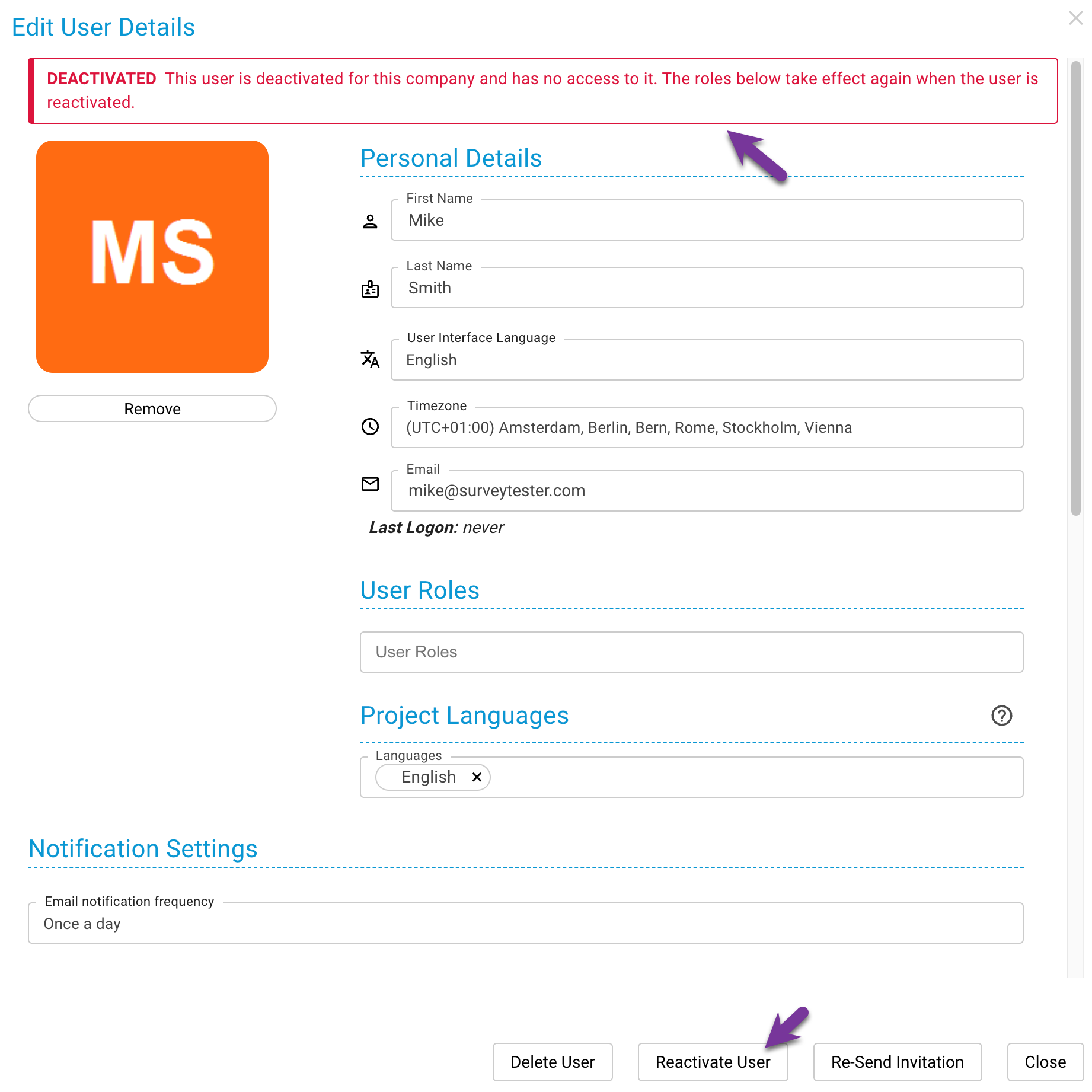
- The admin user list shows a Deactivated badge; the edit dialog shows a banner with the button to reactivate.
Step by step
- Open Administration → Users and the user's edit dialog.
- Click Deactivate User and confirm. The badge appears in the list.
- To give the access back, open the dialog again and click Reactivate: the parked roles are restored as they were.
Notes
- Deleting a user from the company also removes that company's role assignments, parked ones included.
- The system user cannot be deactivated.
- Deactivation is the right choice for leave, project end or offboarding with a chance of return; deletion for accounts that must disappear.
Key takeaway
Deactivate instead of delete: the user is out of your company at once, remains in the others, and comes back with the same roles when you reactivate.