
A project backup is one file that holds everything SurveyTester knows about a project: the settings, markets and languages, the detected pages and questions, every test run with its steps and screenshots, the issues with their images, test cases, documents, translations and milestones. You create it with one click, keep it on the server or download it, and restore it later - into the same company, into another company, or on a different SurveyTester server.
What backups are for
- Archiving. A signed-off project stays available after it was deleted to free up space. Restore it when the client asks a question six months later.
- Safety before big changes. Take a backup before you replace the survey link, re-detect every page or clean up the issue list.
- Moving projects. Upload the file on another SurveyTester server and restore it there, together with the project type, planner template, forms and data fields it uses.
- Copies. Restore a backup as a copy to keep the original untouched, for example to try something out or to hand a frozen state to a second team.
Creating a backup
Open Project Details › Lifecycle. The Backup Project section shows the approximate size of a backup, the backup space of the company (used and available megabytes) and the date of the last backup. Users need the permission Backup Project; users with Manage Backups can create backups as well.
- Decide whether the rendered screenshots from the Screenshot Server go into the file. Tick Also include the rendered screenshots from the Screenshot Server if you want them; the native screenshots taken by the browser extension and the issue screenshots are always included. The rendered images make the backup much larger and the job much slower.
- Click Create Backup. The backup is queued and runs on the server; the page shows the progress and the current step (project data, test runs, page structures, files, screenshots).
- When the job is done, click Download to save the ZIP file to your computer. The file also stays on the server and counts against the company's backup space until an administrator deletes it.
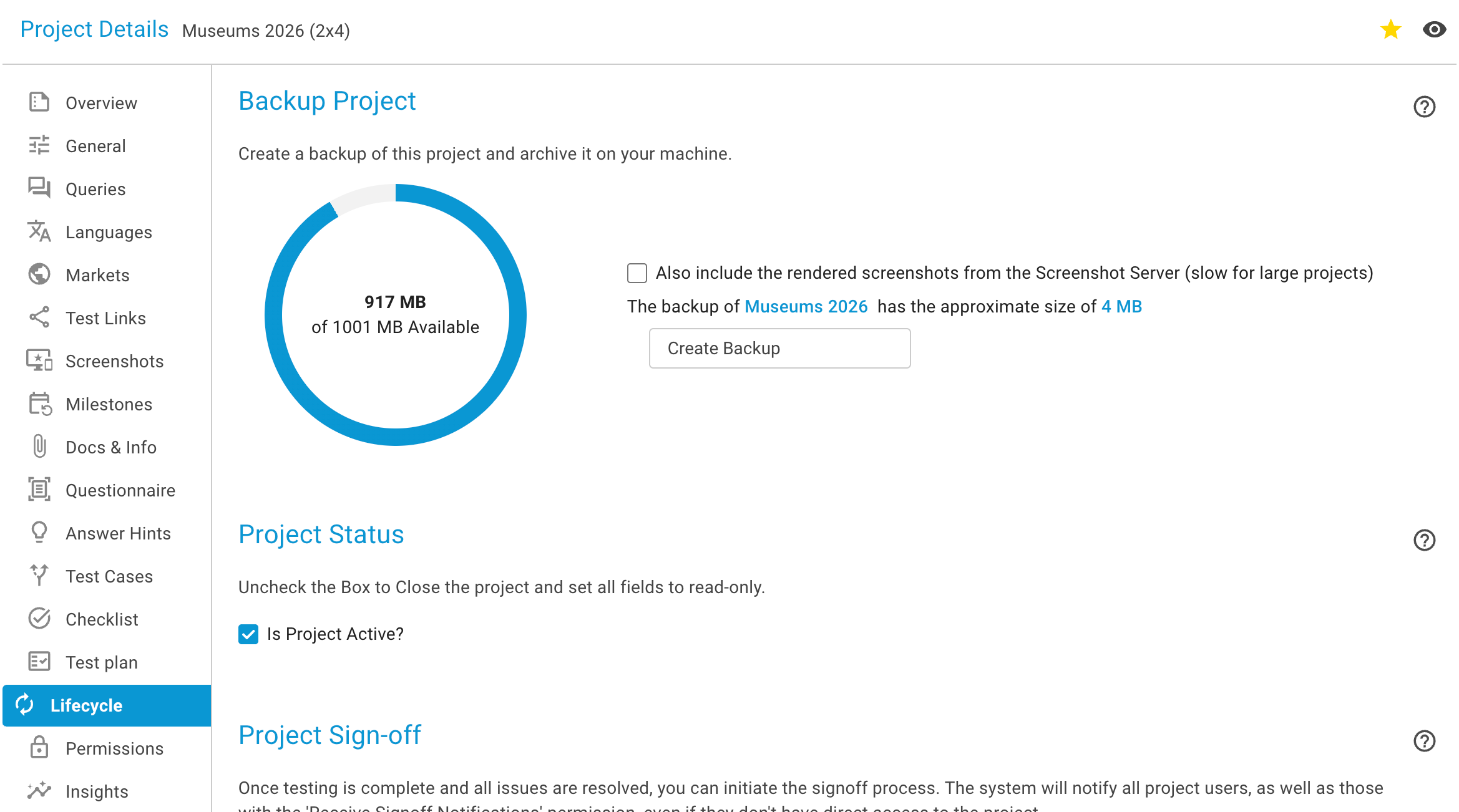
A running backup can be cancelled on the same page. Only one backup or restore job runs per project at a time; a second request waits for the first one.
Note
The backup space of the company is limited. When it is used up, no new backups can be created until an administrator downloads and deletes old files on the Project Backups page.
The Project Backups page
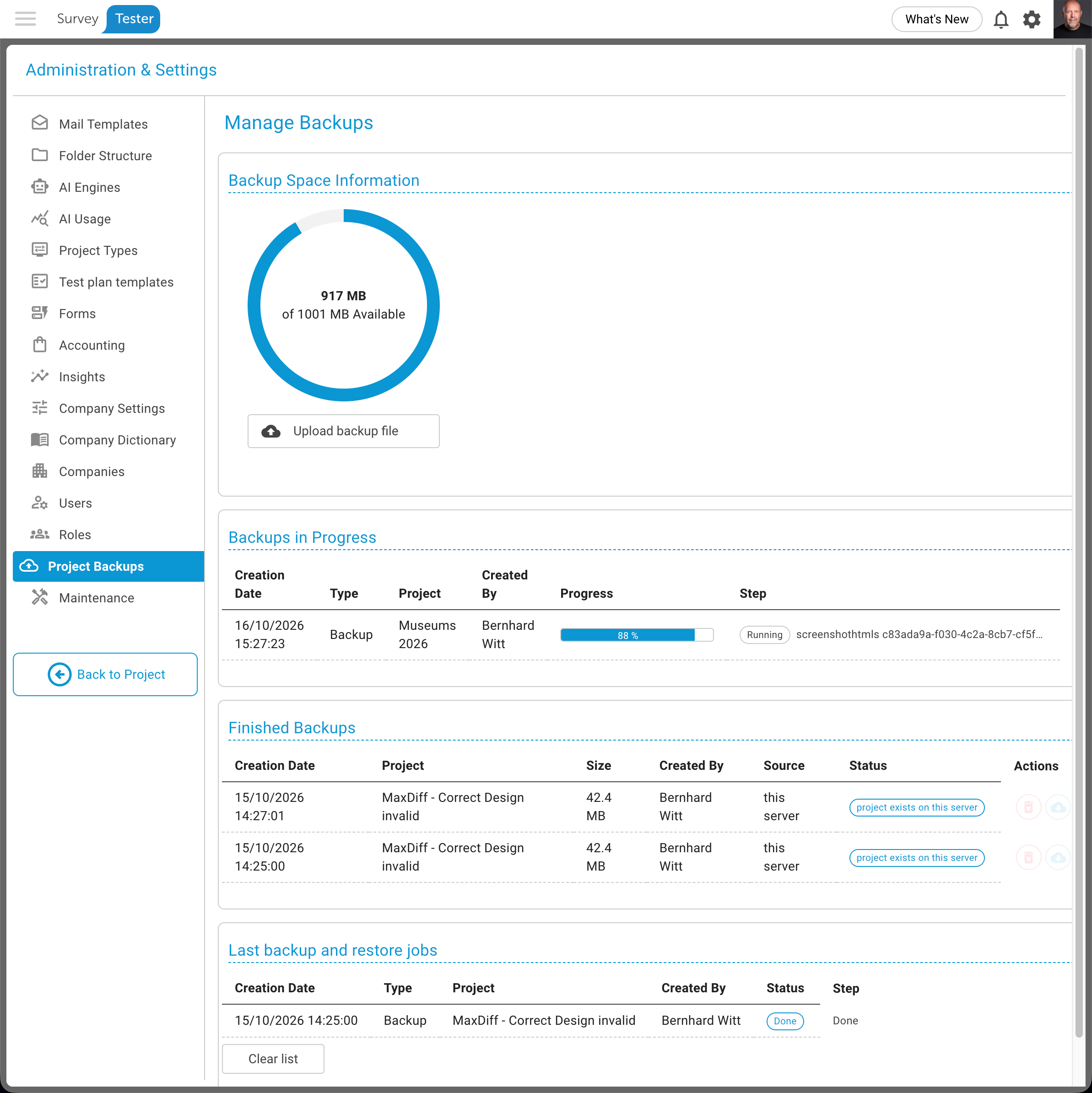
Administrators with the permission Manage Backups find every backup of the company under Administration › Project Backups. The page has four parts:
- Backup Space Information - used and total space, and the Upload backup file button.
- Backups in Progress - the backup and restore jobs that are queued or running, with the progress in percent, the current step and a Cancel button. A job that was interrupted by a server restart is marked as failed and can be started again.
- Finished Backups - one row per file with the date, project, size, who created it, the source server and a status badge: project exists on this server, project no longer exists here, uploaded from (server), or old format, download only for files of the previous backup feature. Each row offers download, restore and delete.
- Last backup and restore jobs - the result of the last jobs with their final step or error message; Clear list removes them.
Where the files live
Backups are stored on the server in the company's backup folder: {GlobalData}\{instance}\{company}\Backups.
The list is built from that folder, so a backup file copied into it by hand - from another server, or from a
download you kept - appears in the list on the next visit and can be restored like any other. A file deleted
from the folder disappears from the list.
Uploading a backup from another server
Click Upload backup file and choose the ZIP. Large files are uploaded in chunks, so a backup of several gigabytes works through the browser; the progress is shown in percent. After the upload the file is listed with the badge uploaded from (server).
Restoring a project
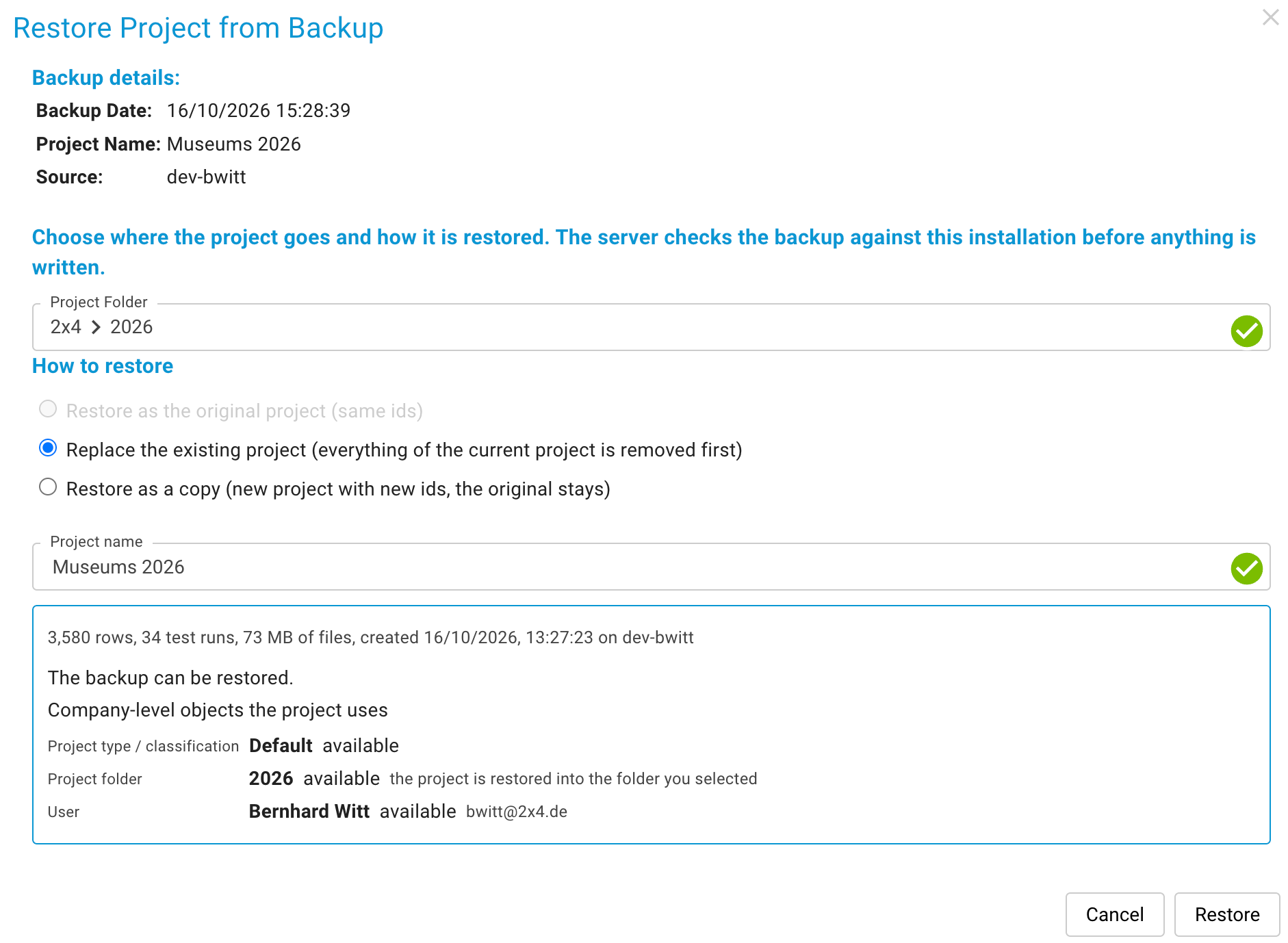
Restoring needs the permission Restore Backups. Click the restore icon of a backup; the dialog asks for three things and then checks the backup against this server before anything is written.
Target company and folder. Choose the company and the project folder the project goes to. A backup of another company can only be restored by someone who manages that company's backups.
How to restore. Three modes:
| Mode | What happens | Use it when |
|---|---|---|
| Restore as the original project (same ids) | The project is created with the ids it had. Links, bookmarks and API references keep working. Only possible when the project does not exist on this server. | The project was deleted, or the file comes from another server. |
| Replace the existing project | Everything of the current project is removed first, then the backup is written with the original ids. Refused while a test of that project is still running. | You want to roll back to the state in the backup. |
| Restore as a copy (new project with new ids) | A new project with new ids; the original stays as it is. | You need a second, independent instance of the project. |
Project name. Preset from the backup; a name that is already used in the target company is refused (except when replacing).
The preflight check
As soon as company, folder, mode and name are set, the server reads the backup and reports what the restore would do: the number of rows and test runs, the size of the files, when and on which server the backup was made, and anything that stands in the way. The Restore button is enabled only when the check passes.
Company-level objects the project uses. A project refers to things that belong to the company, not to the project: the project type (classification fields), the planner template, forms, data fields, users, roles and the AI engine. The dialog lists each of them with its state:
- available - the object exists in the target company; the project uses it.
- create from the backup - the object is missing and the backup carries it. Tick the checkbox to create it in the target company during the restore. Missing objects are ticked by default.
- missing - the object cannot be created: users and roles are never created by a restore (memberships of unknown users or roles are dropped; if the project manager is unknown, you become the project manager), an AI engine that is not configured in the target company is cleared from the project, and an object that exists in another company of the same server cannot be shared.
Differences to this server's database. When the backup comes from a server with a different SurveyTester version, the dialog lists tables or columns that do not exist here or are too short. Rows that cannot be written are skipped and listed as notes; a difference that would lose project data blocks the restore.
What happens during the restore
The restore runs as a job on the Project Backups page. It writes the rows, places the files (documents, translations, screenshots, page structures) and finally rebuilds the caches, so the project appears in the project list when the job is done. If the job fails or is cancelled halfway, the half-restored project is removed again - a restore never leaves a torso behind.
Deleting a project with a backup first
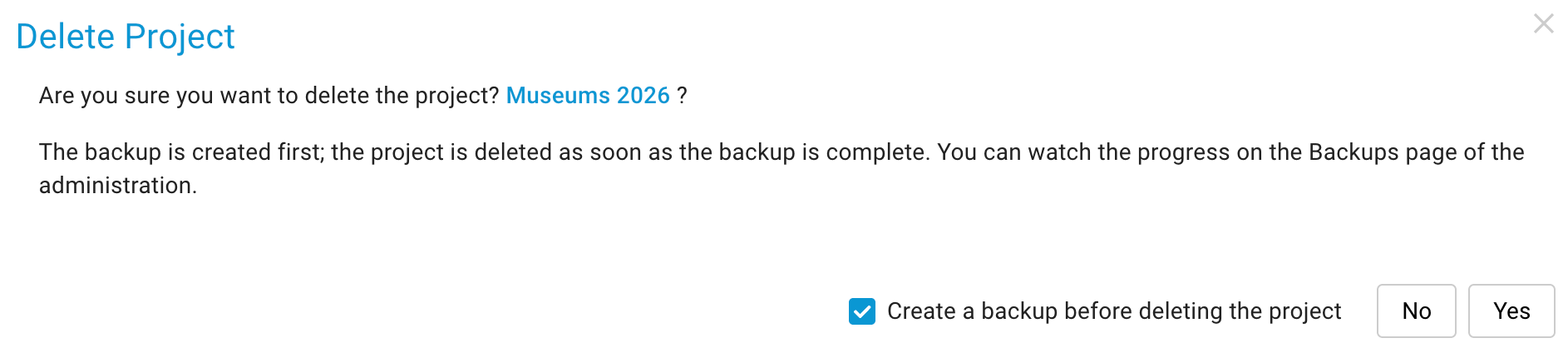
The Delete Project section of the Lifecycle page removes a project completely: all rows, all folders, all screenshots. The confirmation dialog has the checkbox Create a backup before deleting the project, ticked by default. With it, a backup job is queued and the project is deleted as soon as the backup is complete; the job is listed on the Project Backups page with the note project is deleted afterwards. Deleted projects still appear in the billing overview.
Limits
- Rendered screenshots are optional and cannot be pushed back. The rendered images of the Screenshot
Server are included only when the checkbox is ticked. On restore they are placed in a folder next to the
backups (
Backups\RestoredScreenshots\{project}) with a hint in the job result; a server administrator copies them into the Screenshot Server's folder to make them visible again. Native and issue screenshots are restored automatically. - A copy does not inherit billing or AI usage rows. Restoring as a copy creates a new project, so the payment log and the AI usage of the original are not copied. Keep-ids and Replace restore them.
- Old backup files created by the previous backup feature can be downloaded but not restored.
- Users and roles are never created by a restore; add them to the target company first if their memberships matter.