
The Company Dictionary allows your organization to maintain a centralized list of approved words that the spell checker should recognize. This is especially useful in market research environments where brand names, product names, and industry-specific terminology are frequently flagged as spelling errors.
The dictionary is managed at the company level and can be imported or exported through Excel for efficient maintenance.
Use the Company Dictionary when you need to:
- Prevent approved brand names from being marked as spelling mistakes.
- Add industry-specific terms that are not recognized by the spell checker.
- Manage accepted words across multiple languages.
- Standardize spell-checking behavior across your organization.
- Promote project-specific dictionary entries for company-wide use.
To manage the Company Dictionary, users must have the Manage Company Dictionary permission.
The feature is available in:
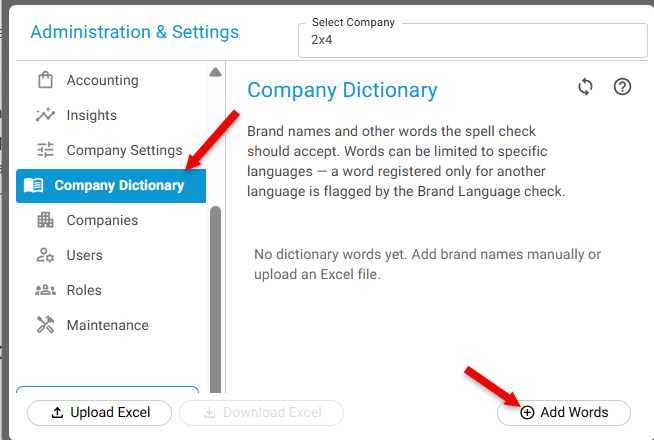
Administration → Company Settings → Company Dictionary
Managing Dictionary Entries
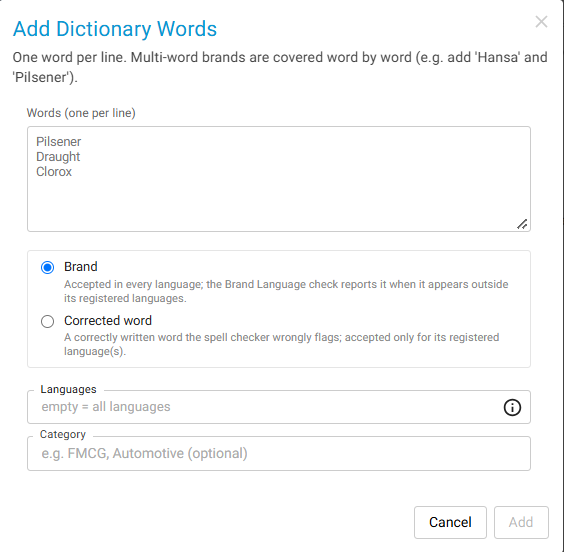
Add a Dictionary Entry (Add Words)
- Navigate to Administration → Company Settings → Company Dictionary.
- Create a new dictionary entry.
- Enter the word to be accepted by the spell checker.
- Select the appropriate entry type:
- Brand: Accepted in every language; the Brand Language check reports it when it appears outside its registered languages. Example: Coca-Cola, Nike, SurveyTester
- Corrected Word: A correctly written word the spell checker wrongly flags; accepted only for its registered language(s). Example: Industry-specific terminology or uncommon technical words.
- Specify the language(s) where the word should be accepted.
- Optionally assign a category.
- Save the entry.
Edit Dictionary Entries
- Open the Company Dictionary.
- Select one or more entries.
- Choose Edit.
- Update the word, languages, category, or type as needed.
- Save the changes.
Multiple entries can be edited simultaneously.
Delete Dictionary Entries
- Open the Company Dictionary.
- Select one or more entries.
- Choose Delete.
- Confirm the deletion.
Multiple entries can be removed in a single action.
Language Settings
Each dictionary entry can be associated with one or more languages.
| Language Setting | Result |
|---|---|
| No languages selected | The word is accepted in all languages. |
en | The word is accepted in all English language variants. |
en-US | The word is accepted only in U.S. English. |
| Multiple languages selected | The word is accepted in all selected languages. |
A single entry can contain multiple languages, eliminating the need to create separate entries for each country or region.
Categories: Entries can optionally be assigned a free-text category to help organize and filter the dictionary.
- FMCG
- Automotive
- Healthcare
- Technology
Categories can be used for searching and filtering within the dictionary table.
Searching and Filtering
The Company Dictionary table supports:
- Search by word or category
- Sorting by available columns
- Filtering entries based on criteria
- Bulk selection for editing or deletion
These features make it easier to manage large dictionaries.
Importing and Exporting with Excel
The entire Company Dictionary can be maintained through Excel.
Export the Dictionary:
- Open the Company Dictionary.
- Download the dictionary as an Excel file.
- Make the required changes in Excel.
Import the Dictionary:
- Upload the updated Excel file.
- The system processes each row and:
- Adds new words.
- Adds new languages to existing words.
- Preserves existing information where applicable.
- A processing report is generated showing:
- Successfully imported rows.
- Skipped rows.
- Invalid rows and validation issues.
Project-Specific Dictionary Entries
When testers add words from an individual project, those entries are marked with a link to the originating project.
Administrators can review these entries and promote them to the Company Dictionary with a single action, making the word available across the entire organization.
Notes and Limitations
- Each word is stored as a single dictionary entry, even when it applies to multiple languages.
- Brand entries are always accepted globally across all languages.
- Corrected Word entries are only accepted in their assigned languages.
- Invalid rows during Excel import are skipped and reported in the import results.
- Project-specific entries must be promoted before they become available company-wide.
Example Use Case
A global FMCG company regularly surveys consumers about the brand Coca-Cola. Because the spell checker does not recognize the brand name, it is frequently flagged as an error.
To prevent this:
- An administrator creates a Brand entry for Coca-Cola.
- No language restrictions are applied.
- The word is automatically accepted in all languages and projects across the company.
As a result, spell-checking becomes more accurate and researchers no longer need to ignore repeated false spelling warnings.