
SurveyTester tests the mobile version of a survey with device emulation: you pick a phone or tablet in the Test Survey dialog, and the SurveyTester browser extension opens the survey in Chrome's mobile emulation of that device – screen size, touch input and user agent included. Tests on physical phones are not supported, and for day-to-day survey QA they are not needed.
Why SurveyTester emulates devices instead of using real phones
SurveyTester's testing tools – issue reporting, screenshots, the recording of every test run – live in the SurveyTester browser extension. Chrome on phones and tablets does not support browser extensions, so a test with SurveyTester cannot run on a physical mobile device.
Device emulation turns this constraint into an advantage for QA teams:
- No device lab. Every tester can test as an iPhone, an Android phone or a tablet from their normal computer, and switch between devices in seconds.
- Everything in one place. Mobile test runs, their issues and screenshots land in the same project as your desktop tests, with the device recorded on every run.
- Reproducible. An emulated device always has the same screen size and settings, so a colleague can repeat exactly the test you ran.
When emulation is enough – and when it is not
Chrome sets the viewport, pixel density, touch input and user agent of the selected device. The survey therefore behaves as it does on a phone: it delivers its mobile version, uses its responsive layout and reacts to touch. This covers what survey QA usually needs to check on mobile:
- the layout of every page at phone and tablet widths
- the mobile variants of question types, such as grids that collapse into one question per row
- text that wraps, truncates or overflows on a narrow screen
- answer options and buttons that are large enough to tap
- routing, validation and the navigation between pages
It is not a real device: the page is still rendered by Chrome on your computer. iOS form controls, Safari-specific behaviour and device fonts are not reproduced. Special question components – custom sliders, drag-and-drop or card-sorting widgets, embedded media players – may behave differently on real hardware. The developers of such components test them with their own tools and devices; SurveyTester's job is the survey as a whole. If a survey relies on such a component or on a complex screen layout, run an additional check on a real device for that part.
Run a manual test on an emulated device
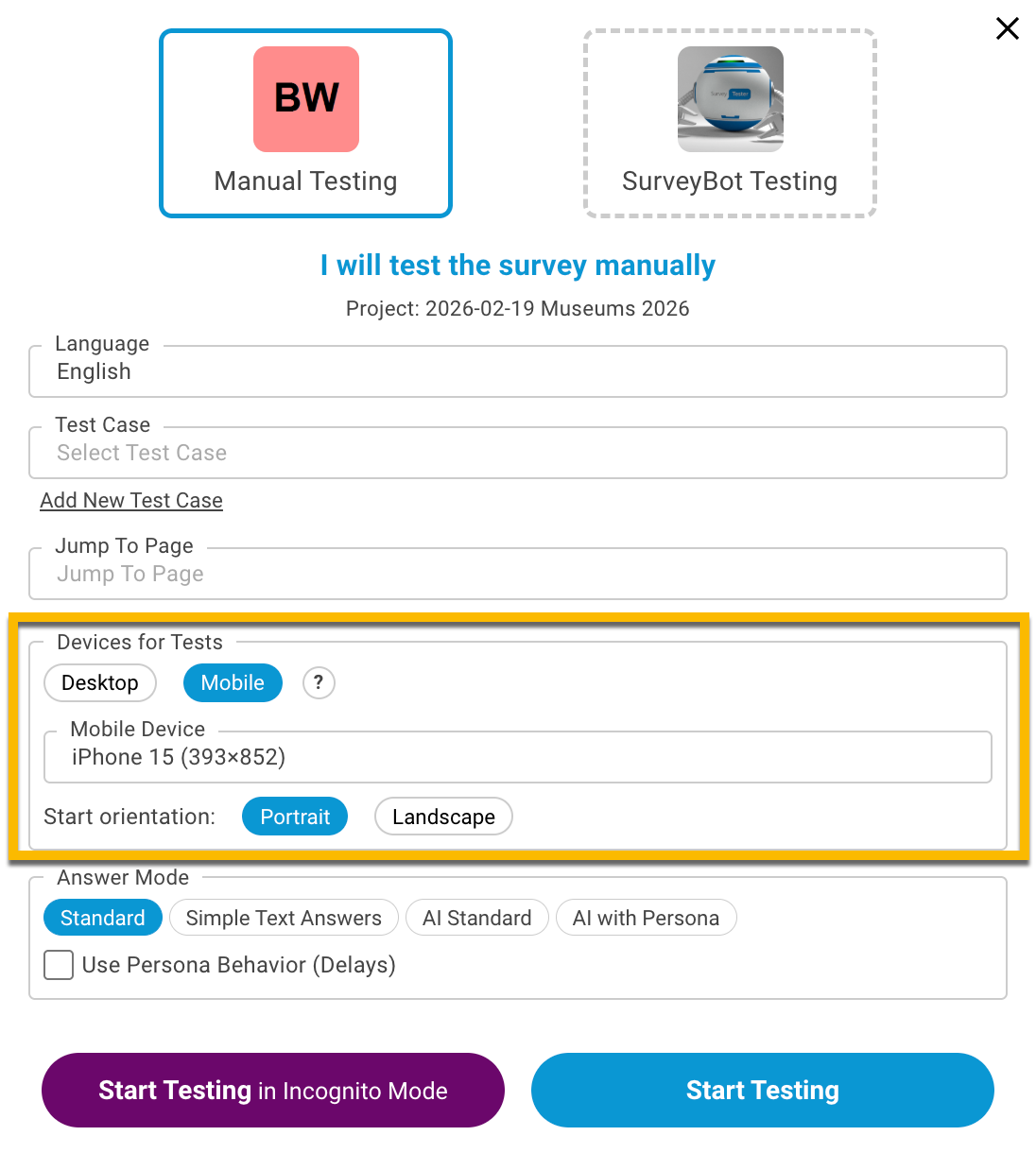
- Open the project and click Test Survey.
- Select Manual Testing.
- Under Devices for Tests, click Mobile.
- In Mobile Device, select the device to emulate. Each entry shows the device name and its screen size in pixels, for example
iPhone 15 (393x852). SurveyTester maintains this list and updates it regularly to reflect the devices in use in the market. - Under Start orientation, choose Portrait or Landscape.
- Click Start Testing.
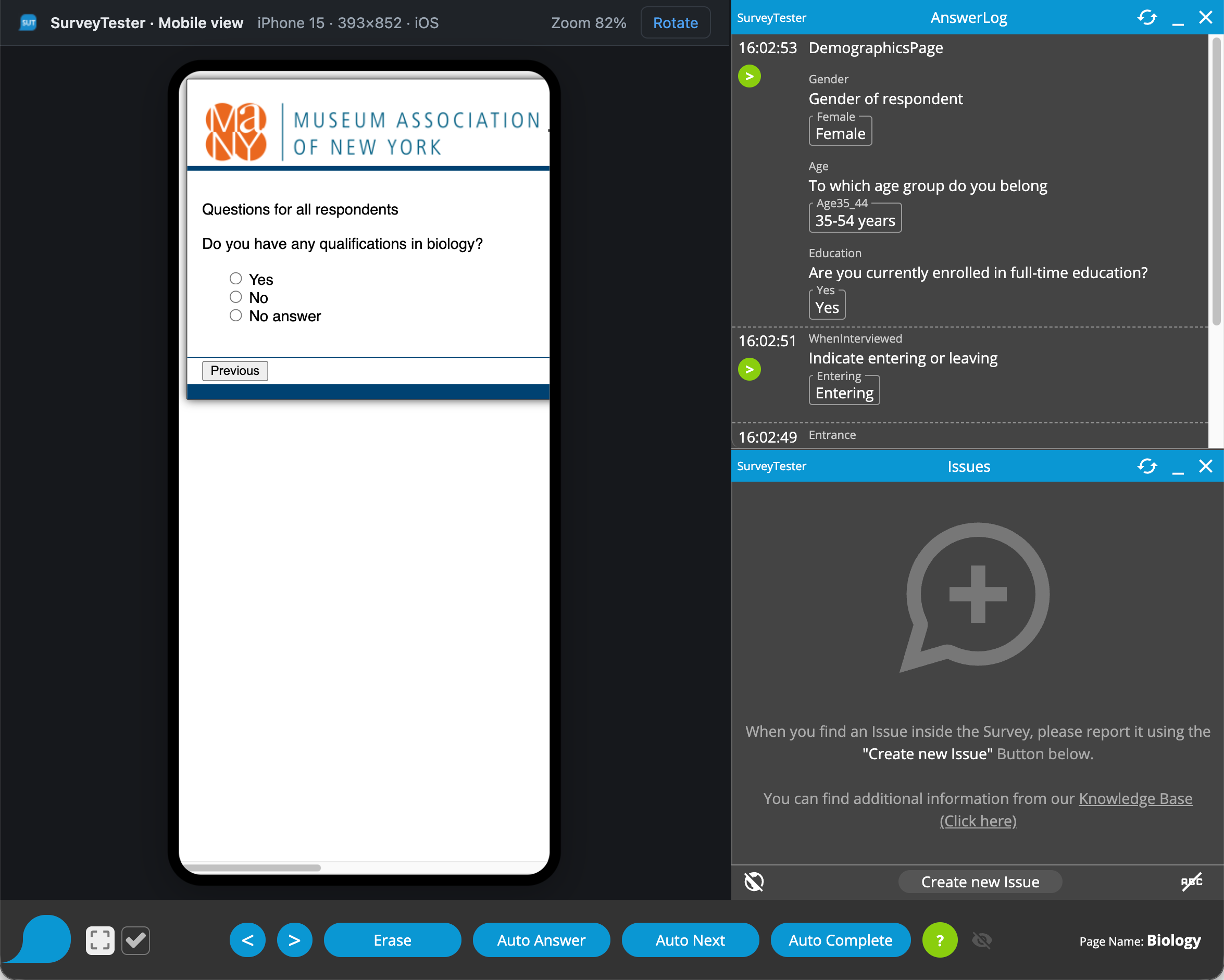
The extension opens a separate window, SurveyTester · Mobile view, with the survey inside a device frame of the exact screen size. The SurveyTester toolbar works as in a desktop test: you answer the survey, report issues and take screenshots in the usual way.
Note
If Devices for Tests does not appear in the Manual Testing section, your browser extension cannot emulate devices yet. Update the SurveyTester extension to the latest version and make sure you are testing in Chrome.
Rotate the device during the test
Click Rotate in the bar at the top of the Mobile view to switch between portrait and landscape at any time. The bar always shows the current state: device name, width × height in pixels and the operating system (iOS or Android). If the device is taller than your window, the view is scaled down and the bar shows the zoom level – the survey itself still sees the full device size.
Where you see the device of a test
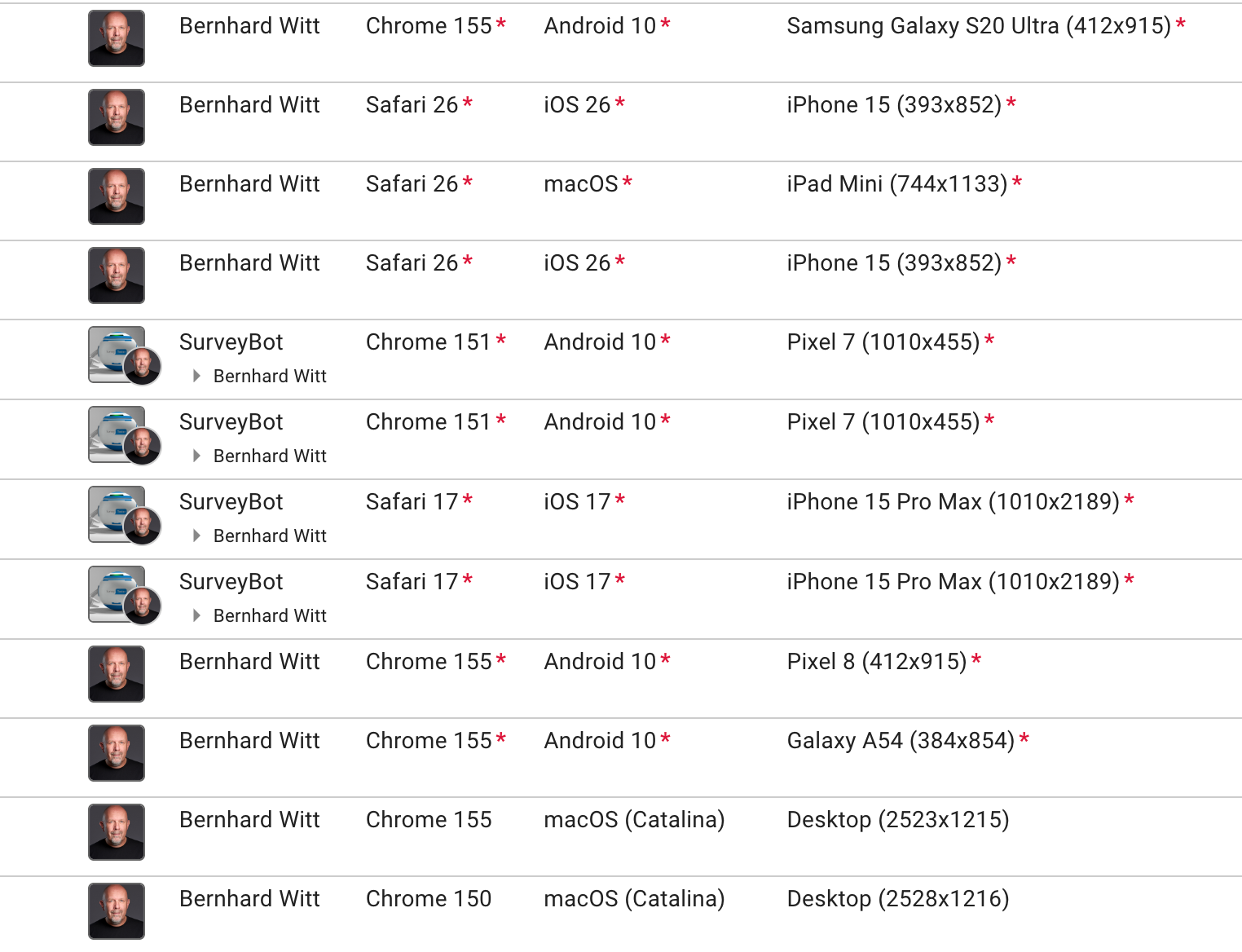
- Test runs list. The columns Browser, Operating system and Device show how each run was executed. For an emulated device, Device shows its name and screen size, for example
iPhone 15 (393x852); desktop runs showDesktopand the browser window size. Show the column if it is hidden in your list. - Issues list. Issues reported from a test run carry the same Browser, Operating system and Device information, with the screen size of the page on which the issue was reported. Issues entered manually have no device.
- During the test. The bar at the top of the Mobile view shows the device name, the current width × height and the operating system.
The same device list is available for SurveyBots: choose Mobile under Devices for Tests when you start automatic tests, and the bots run the survey on the emulated device.
Tips and limitations
Tip
Screenshots follow the orientation. Screenshots are captured in the orientation the device has at that moment. If you need all screenshots of a test run in portrait, start the test in Portrait and do not rotate. If you need both orientations, run the test twice.
Important
Surveys that break out of frames. The Mobile view runs the survey inside a frame. A survey that uses a mechanism to break out of frames or to open itself in a new window will probably not work in the Mobile view. In that case, contact SurveyTester support – we will look at the survey with you.
Key takeaways
- SurveyTester tests mobile layouts by emulating phones and tablets in Chrome; physical devices are not supported because mobile browsers do not run extensions.
- Emulation covers what survey QA needs: responsive layout, mobile question variants, touch-friendly controls and routing. Special custom components are the exception.
- Start a mobile test in Test Survey → Manual Testing → Devices for Tests: Mobile, pick a device and a start orientation, then click Start Testing.
- The device of every test run and issue is recorded and shown in the Device column.
- Screenshots are taken in the current orientation, and surveys that break out of frames need a look from support.