
Zoho Survey is a dedicated survey system in SurveyTester. A project set to Zoho Survey (or to Automatic) recognises the published form the moment the browser extension opens it: the pages, the questions with their answer options, the display logic that hides questions, and the validation messages the form shows when an answer is missing. From there everything else in SurveyTester works as usual - Auto Answer, Auto Complete, SurveyBots, test cases, issues and the Pages & Routing overview.
What a Zoho Survey form looks like to a tester
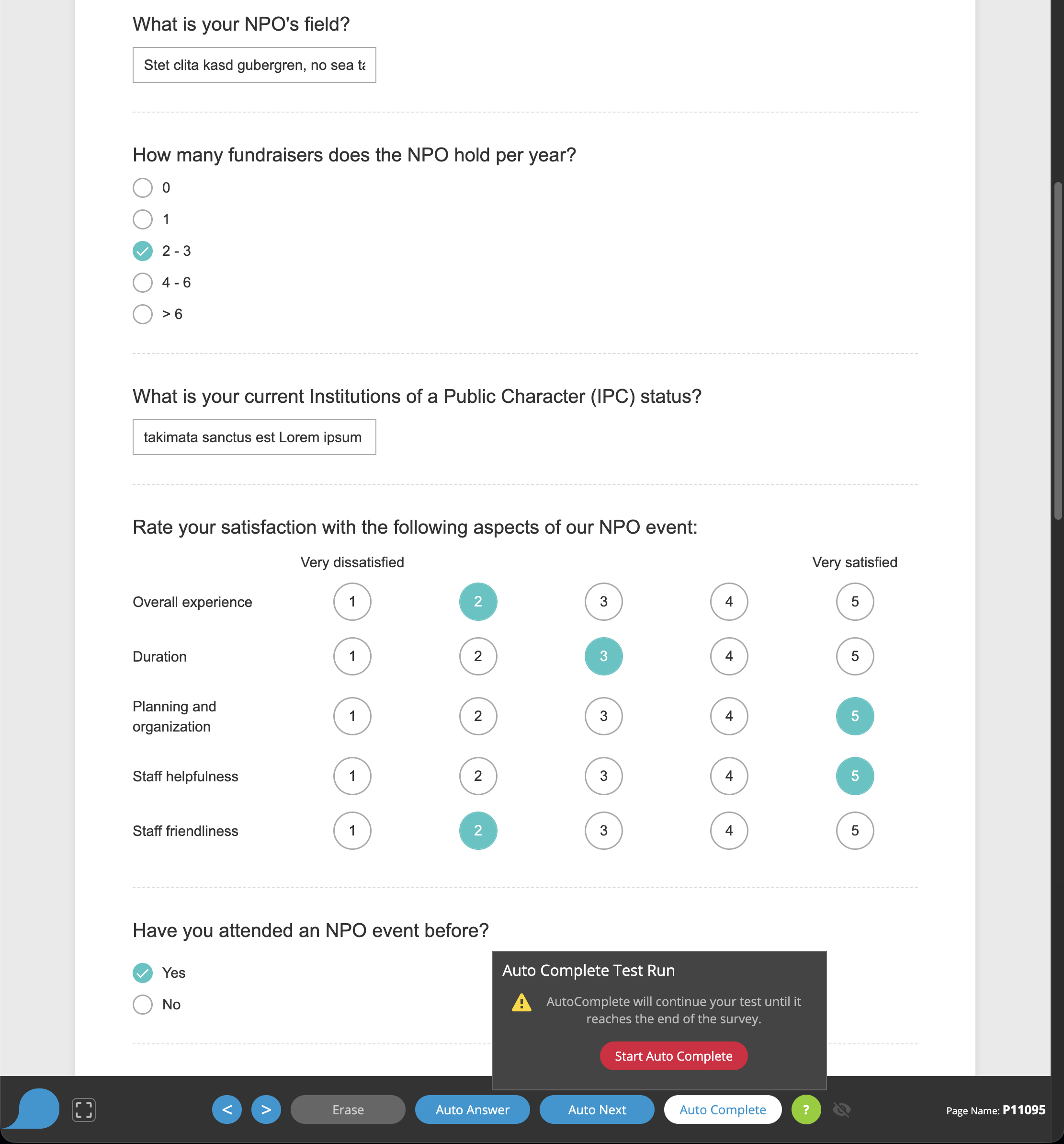
A published Zoho Survey runs as a single web page. The first page comes from the server; every later page is loaded in the background and shown in the same browser tab without the address changing. Questions can be hidden or shown on the same page depending on an earlier answer ("Display logic"), a missing mandatory answer is reported right below the question, and the Next button becomes Submit on the last page.
Why this is hard to test without SurveyTester
- Nothing reloads. Because all pages live in one browser tab, a generic tool sees one page that keeps changing. SurveyTester watches the form itself and records a new test step every time Zoho swaps the page.
- Hidden questions look like missing questions. Display logic removes questions from the page without any navigation. SurveyTester records the page as the respondent saw it, so a question that never appeared is not reported as skipped by mistake.
- Validation happens in the browser. Zoho refuses to leave a page with an unanswered mandatory question and prints the message under that question. SurveyTester captures the message, attaches it to the question and, in automated runs, answers again instead of getting stuck.
- Ids are long and change nowhere. Zoho identifies questions by 19-digit numbers. SurveyTester shortens them
to stable names such as
Q3026for questions,P3025for pages andR3038for matrix rows - the names stay the same when the author inserts a question, so test cases and issues keep pointing at the right place.
Supported question types
| Zoho question type | How SurveyTester tests it |
|---|---|
| Single choice, image choice, dropdown, multi-select dropdown | One or several options are chosen - Zoho's own dropdown lists included; an "Other (Please specify)" option gets its text box filled. |
| Slider, constant sum (boxes or sliders) | A value within the slider's range is set; constant-sum rows get numbers. |
| Ranking | Every item receives a rank from its rank dropdown, all ranks different. |
| Matrix with text boxes, dropdowns or toggles per cell | Every cell is filled according to its kind. |
| Multiple text boxes, full name, contact information | Every field is filled; the country and state lists are chosen from. |
| Multiple choice | Several options are ticked within the minimum and maximum the author set; "None of the above" stays exclusive. |
| Rating scale (Likert), star rating, NPS | One point of the scale is chosen; the end labels ("Extremely easy" / "Extremely difficult") are kept as the question's left and right text. |
| Matrix (rating, radio, checkbox) | Every row is answered; rows are named after the row ids (Q3037_R3038). |
| Comment box, single-line text, email, number, date | A fitting value is typed; character limits and number ranges from the form are respected. |
| Yes/No | The toggle is set. |
| Heading / descriptive text | Recorded as text, nothing to answer. |
Question types SurveyTester has not met yet (MaxDiff, heat map, trend question) are still read from the controls on the page, so the test run continues; they are marked in the page structure so you can see which type was parsed generically. File uploads and signatures cannot be filled automatically; the bot leaves them empty.
Step by step
- Create the project. Choose Zoho Survey as the survey system, or leave it at Automatic - the form is
recognised either way. Paste the public survey link (
https://survey.zohopublic.com/zs/...) or the link of a form embedded in your own site. - Start a test run from the project with the SurveyTester browser extension. The SurveyTester bar appears above the form, and the first page is recorded as step 1.
- Answer the survey by hand, or press Auto Answer and Auto Next to let SurveyTester fill the page and move on. Each Next or Submit creates the next step; Previous is recorded as a backward step.
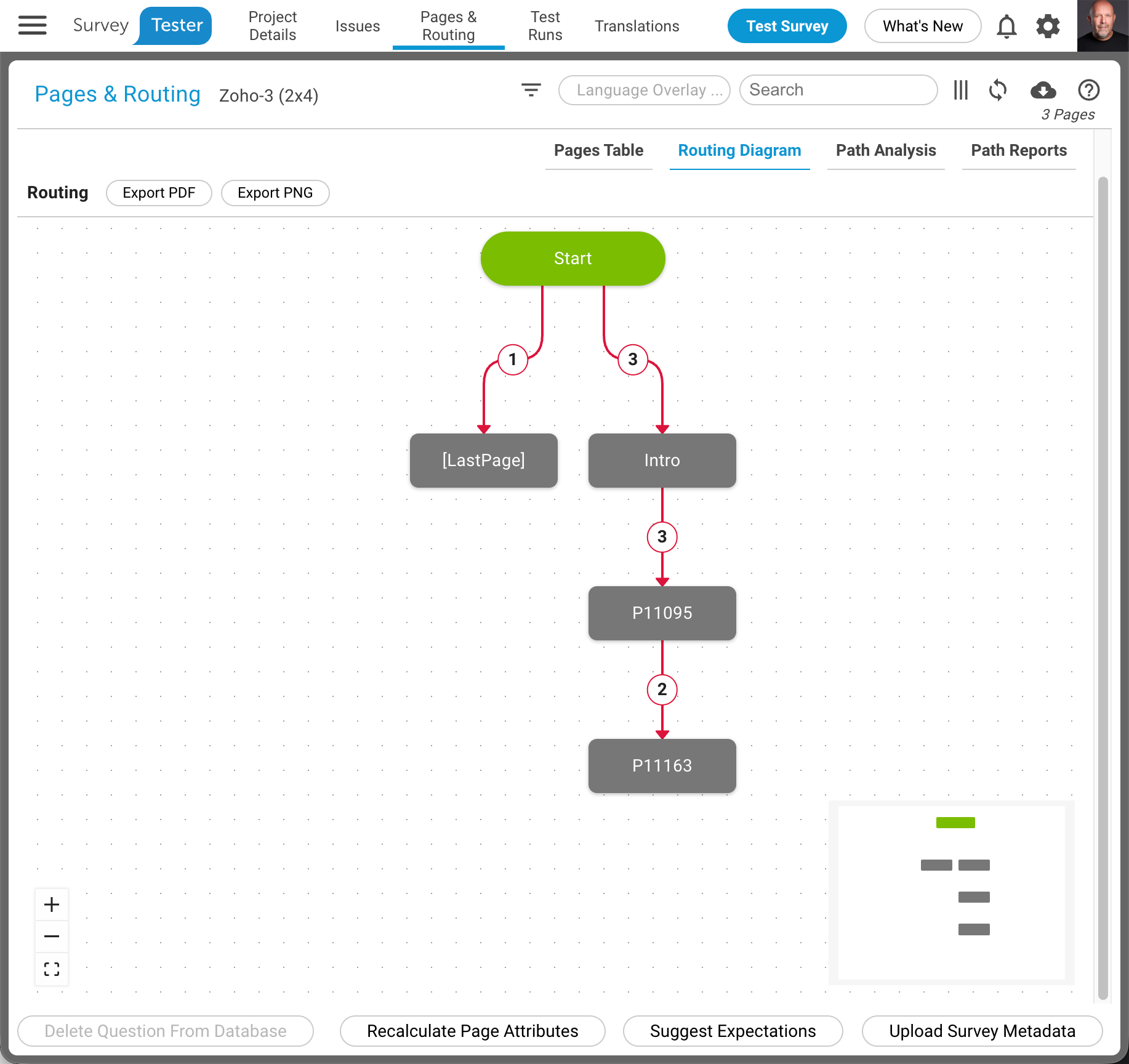
- Check the result on the Pages & Routing page: every Zoho page appears once with its title, every question with its answer options, and every validation message the form showed during the run.
Good to know
- Display logic on the same page. When a later question appears only after a certain answer, the page is recorded in the state the respondent saw it. Run the survey several times (or let a SurveyBot do it) to cover the other branches.
- Mandatory questions. Zoho's "This question is mandatory" message is attached to the question that caused it. In automated runs SurveyTester answers the page again; a run that keeps failing the same page is stopped as stuck.
- The Submit page. On the last page SurveyTester clicks Submit instead of Next; the thank-you page that follows ends the test run.
- Timed pages. If the author delays the Next button, SurveyTester waits for it to become clickable (up to two minutes) before moving on.