
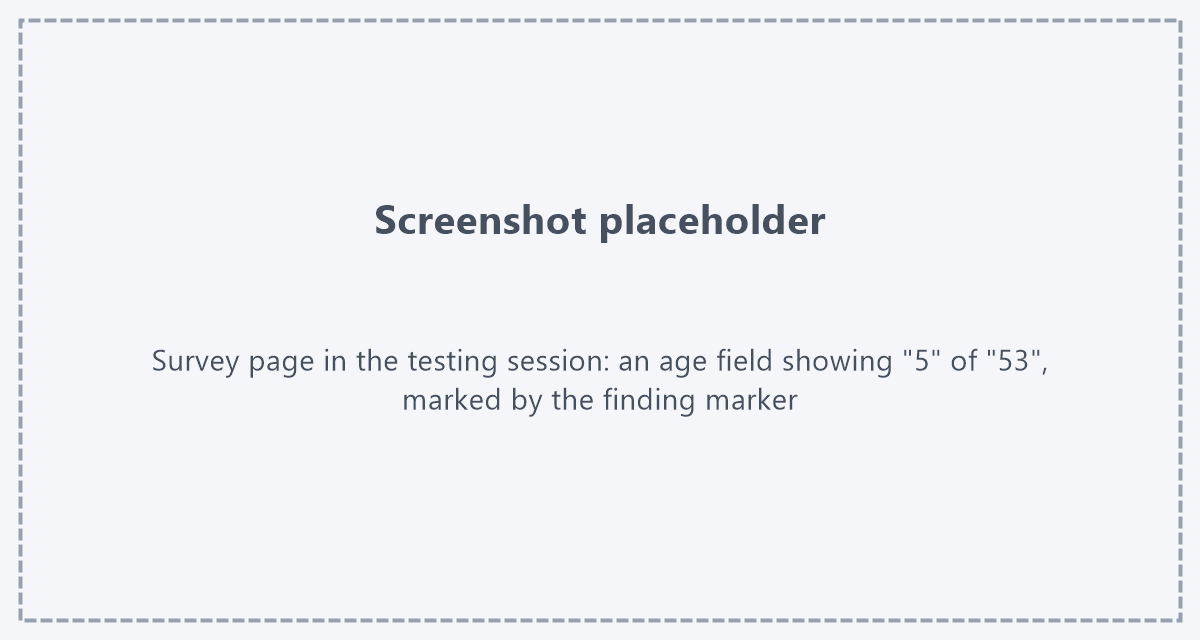
A respondent types their age, 53, into a field - and the field shows "5". The "3" is still there, but it only scrolls into view while the cursor sits in the box. As soon as the respondent moves on, the answer looks wrong, and many of them go back and "correct" it. The data you get is either a wrong value or an annoyed respondent. SurveyTester measures every text and number field in the rendered page and reports a field that is too narrow for its value as a finding. The check is one of the Auto-Detect checks and runs without anybody having to start it.
Why a too narrow field is hard to find
- It depends on the rendered page, not on the script. The width a field really has comes from the survey template, the CSS, the font and the screen. The questionnaire script says nothing about it, and a field that is wide enough on the programmer's monitor can be two digits wide on a phone.
- It only shows with the right value. A tester who types "7" into the age field sees nothing wrong. The problem appears with "53", with a ten-digit phone number or with a postal code - whatever the tester did not happen to type.
- It is easy to overlook even when it happens. While typing, the field scrolls along with the cursor, so the tester sees the full value. Only after leaving the field is part of it hidden.
- The same field repeats. A template with a fixed field width breaks every numeric question of the survey, in every language - but nobody tests every numeric question with its longest value.
How it works
When a page of a test run is open, the SurveyTester browser extension measures the visible text and number fields directly in the rendered page: the width that is really available for text (box width minus padding, and minus the spin buttons of a number field), with the real font, size and letter spacing of the field. It is a measurement, not a guess from the HTML.
The check runs in every kind of test run:
- SurveyBots - each field is measured right after the bot has typed its answer.
- Manual tests and test links - each field is measured when the tester leaves it after typing, and fields that already hold a value (for example after going back to a page) are measured when the page opens.
When it fires
A field is reported in two cases:
- The value typed into it does not fit. The entered text is wider than the visible part of the field, so the respondent sees only the beginning of it.
- The longest allowed value would not fit. For numeric fields SurveyTester also looks at the limits the
survey sets on the field - the
maxlengthattribute (number of characters) and themaxandminvalues - and checks whether the widest value they allow would fit. A field withmaxlength="3"that shows only two digits is reported even if the bot typed "7". This way a single test run finds the problem, without anybody having to try the longest value.
A small tolerance of two pixels absorbs the cursor and rounding, so a value that just fits is not reported.
What is left out
- Long text fields. A free-text field for a sentence is meant to scroll; the maximum-length test applies to numeric fields only. A text field is reported only when the value actually typed into it is cut off.
- Unrealistic limits. A
maxlengthabove 12 digits is treated as a technical limit, not as the length respondents are expected to type. - Hidden, read-only and disabled fields, and the SurveyTester toolbar itself.
- Repeats. Every field is reported once per page of a test run, and the finding text contains only the properties of the field, not the typed value. So twenty bots typing twenty different ages produce one finding for the field, not twenty.
Reading the finding
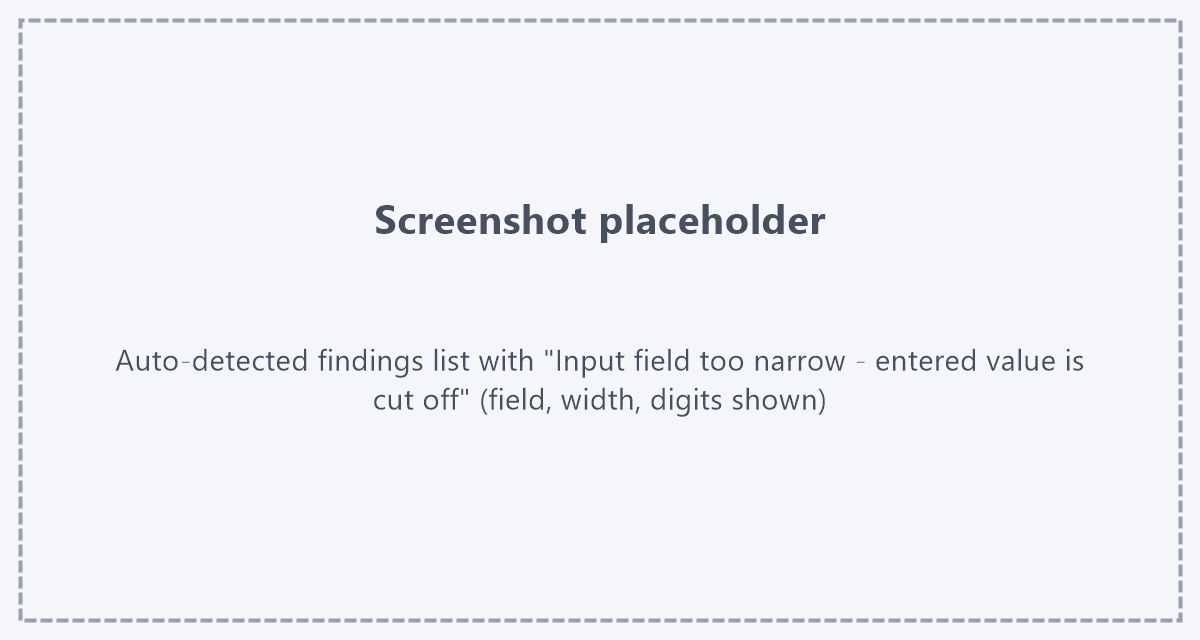
The finding is titled Input field too narrow - entered value is cut off and names the field (its name or
id), the width available for text in pixels, how many digits the field can show and, where set, the
maxlength of the field. In the testing session the field is marked directly on the survey page; the marker
tells you, for example, that the field is 18px wide and shows only 1 digit.
Like every automatically detected finding, it is either accepted - it becomes an issue for the survey author - or declined with a reason, for example when the field is intentionally compact.
How to fix it in the survey
The fix is almost always in the layout of the survey, not in the question logic:
- Widen the field. Most survey platforms have a width or size setting for numeric and text questions. Set it to the longest value respondents will type, plus a little room.
- Use CSS. Where the template sets a fixed width, override it for the field or for all numeric fields, for
example
width: 6em;. Units based on the font (em,ch) scale with the text;min-widthprevents the field from shrinking on narrow screens.width: 5ch;makes room for exactly five digits of the field's font. - Use the
sizeattribute. On a plain HTML input,size="5"asks the browser for a field about five characters wide - but a CSS width set by the template wins over it. - Check the limits. If the field is narrow on purpose, make sure
maxlengthandmaxmatch the values you really expect. Amaxlength="10"on an age field is a programming error of its own. - Test on a phone. Responsive templates often shrink fields on small screens. Run SurveyBots or a manual test with a mobile device setting to see whether the field still fits there.
After the fix, the next test run measures the field again; when it fits, no new finding appears.
Switching the check on or off
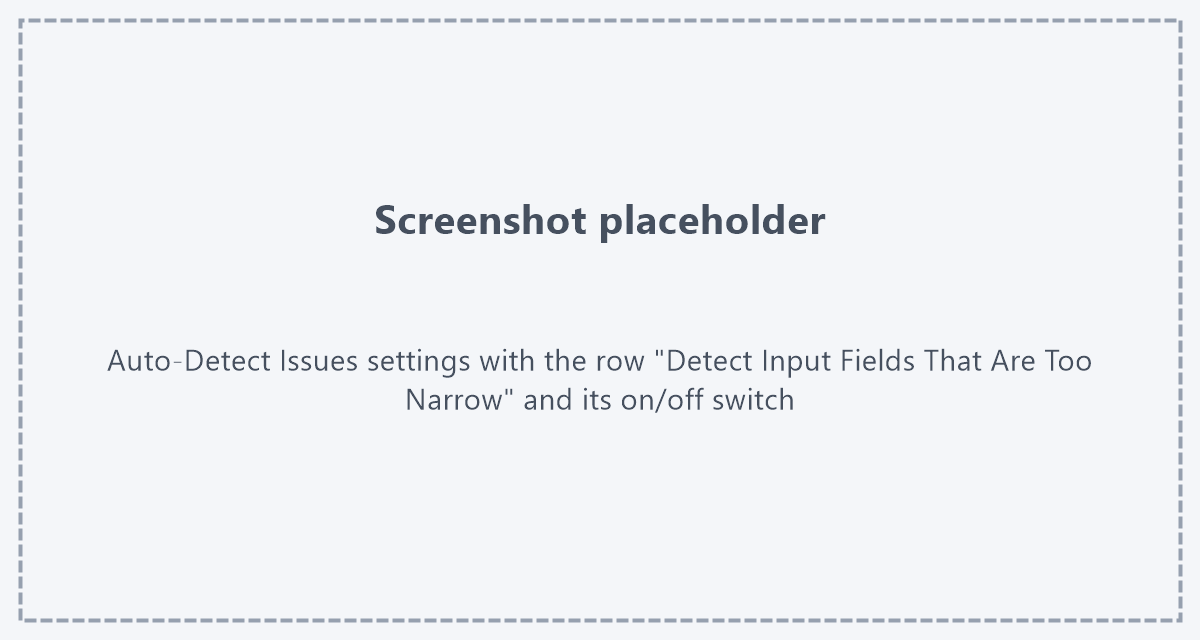
The check is listed among the Auto-Detect checks as Detect Input Fields That Are Too Narrow. Like the other checks it can be switched on or off for the whole company in Administration › Company Settings › Auto-Detect Issues, per project type, and per project. Switching it off stops the measurement for new test runs; findings already reported stay in the list. See Auto-Detect Issues and Setting up automatic issue detection per project type.
Notes
- The check needs the SurveyTester browser extension, because only the live page knows the real width of a field. Pages that are analysed without a browser - an uploaded questionnaire, for example - are not measured.
- The measurement reflects the browser window of the test run. A field that fits on a desktop screen can still be too narrow on a phone; test with the device settings your respondents use.
- Drop-downs, sliders and multi-line text areas are not measured.
Key takeaway
A respondent who cannot see what they typed either gives up or gives a wrong answer. SurveyTester measures every field in the rendered page, with the value really typed and with the longest value the field allows, so a field that is too narrow is found in the first test run - not by the first respondent.