
This sandbox lets you try the questionnaire check in your own project: you create a project from a demo survey and attach its Word questionnaire in the same dialog. While you run the first tests, SurveyTester reads the document in the background. Afterwards you match the questionnaire with the test runs and see where the programmed survey deviates from the document - the check every project needs before launch, without reading the questionnaire twice.
The demo survey is a visitor survey for a museum association, programmed in Dimensions, in a version that contains deliberate mistakes. The questionnaire describes the survey as it should be. It takes about 30 minutes, most of it waiting for the analysis; the background is in Working with the questionnaire document.
What you need
| Demo survey | https://www.feedback-experts.com/mrIWeb/mrIWeb.dll?I.Project=SANDBOX_MUSEUMSWITHERRORS |
| Questionnaire | Museums of New York 2026 - questionnaire (Word) - download it to your computer first |
| AI switched on | An administrator has added at least one engine under Administration › AI Engines and made it the company default; under Feature Defaults the feature Questionnaire Document Analysis must not be set to Turned off. See AI Administration & Usage Controls |
| Permission | Use Questionnaire Analysis in your role (Administration › Roles) - it shows the questionnaire field in the new-project dialog and the Questionnaire tab |
The questionnaire has 35 pages with single and multiple choice questions, numeric inputs, open text, a ranking grid and a rating grid, plus routing notes such as "If Before = Yes skip to VisitsPage". It is an ordinary Word document - exactly what a researcher would hand to the scripter.
Note
Every analysis is billed by the AI provider to your company. One questionnaire of this size is one analysis; please do not re-analyse it without reason.
Step 1: Create the project with the questionnaire attached
Open the project menu (☰) and choose Create New Project. Pick a folder, give the project a name such as "Sandbox Questionnaire", and paste the survey link as Survey Link:
https://www.feedback-experts.com/mrIWeb/mrIWeb.dll?I.Project=SANDBOX_MUSEUMSWITHERRORS
Under Questionnaire (optional) click Choose a Word, Excel or PDF file… and select the downloaded Word file. Choose English as default language and click Create Project.
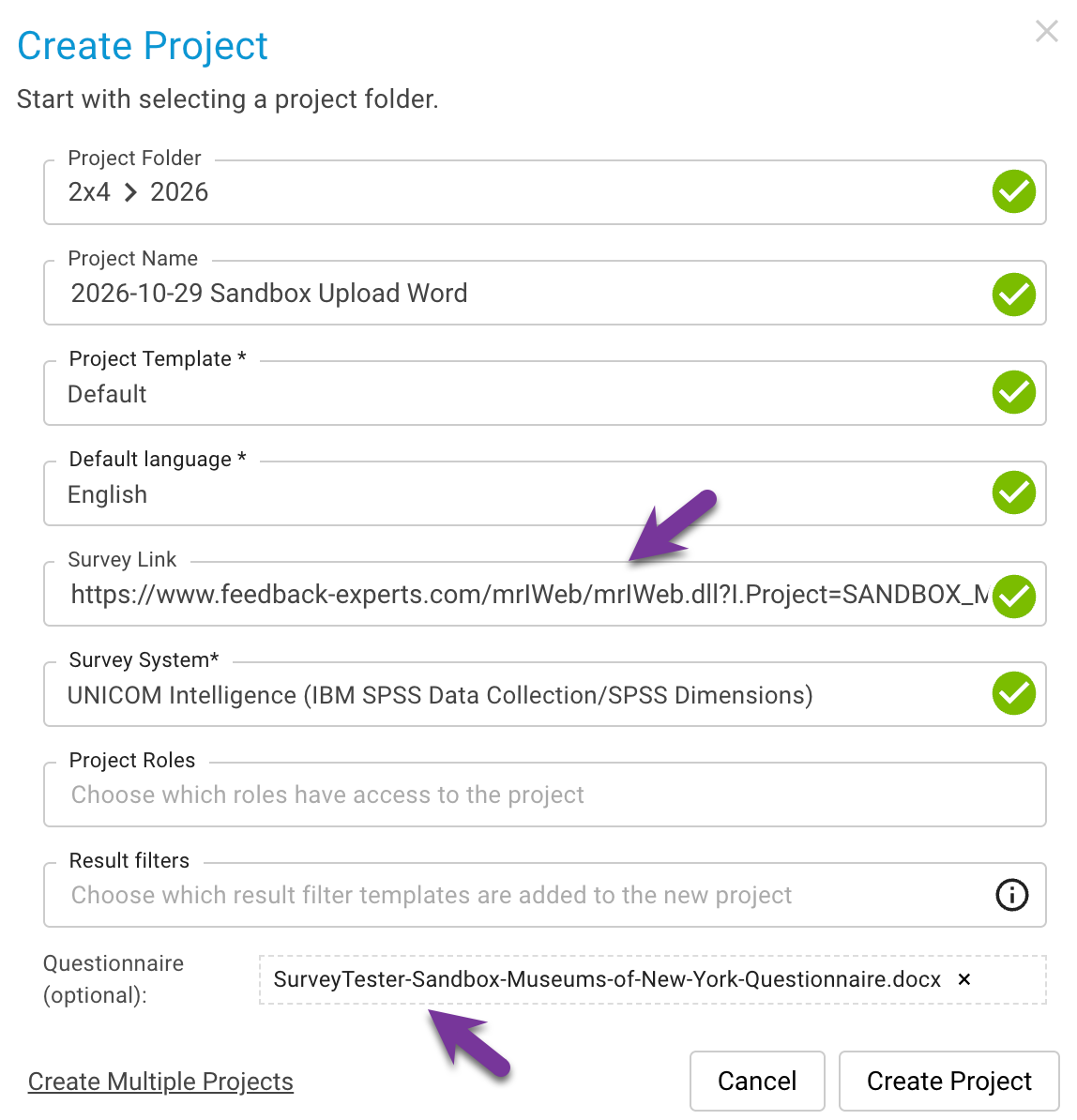
The project opens as usual. The document is uploaded right after the project exists and the analysis starts on its own - you do not have to wait for it.
Tip
The field only appears when your role has the Use Questionnaire Analysis permission. If you do not see it, create the project without the document and upload it later in the Questionnaire tab of the project details; the result is the same.
Step 2: Run tests while the document is analysed
The analysis takes 10 to 20 minutes for this questionnaire. Use the time to give SurveyTester something to match against: the survey questions are detected from test runs.
Click Test Survey, choose SurveyBot Testing and start 10 to 20 test runs; random answers are fine. The bots cover the routing branches of the museum survey - entering and leaving visitors, visitors with and without a group - so most pages are seen at least once. If you like, also click through the survey once yourself with Manual Testing to see what the bots see.
When the runs appear in Test Runs, open Pages & Routing: the detected pages and questions are what the questionnaire will be matched with.
Step 3: Look at what SurveyTester read
Open Project Details and the Questionnaire tab. The document is listed with its status: Analysing… while the AI is still reading, Analysed when it is done; the progress line shows the current stage.
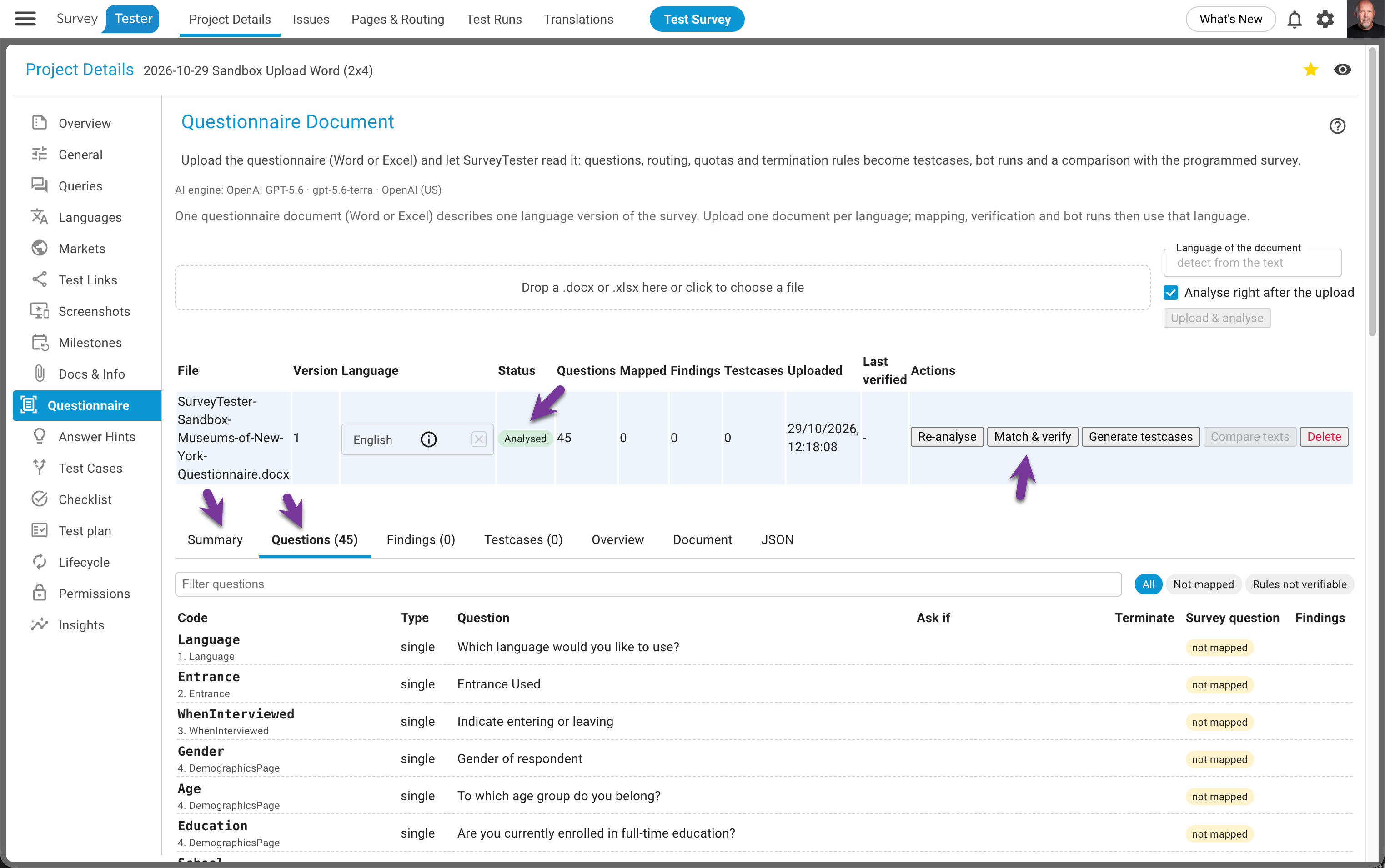
Open the document and browse the result:
- Overview - title, language, sections and the warnings of the extraction.
- Questions - every question with code, type, text, options or rows, Ask if routing and the scripter notes, each next to the original fragment of the Word file. Click a question to see the fragment, the recognised structure and - once a test run has shown the page - the screenshot of the survey page side by side.
Nothing is matched yet: the Survey question column is still empty, and the Summary tab tells you so under What to do next.
Step 4: Match & verify
Click Match & verify. SurveyTester maps every question of the document to a detected survey question and checks the survey against the document: structure (options, exclusive flags, question type), wording, and - per test run - routing and termination. A line Matched … questions (… not mapped); … findings appears when it is done, and the Summary tab shows the cards: questions in the document, mapped to the survey, test runs analysed, routing rules verified, open findings.
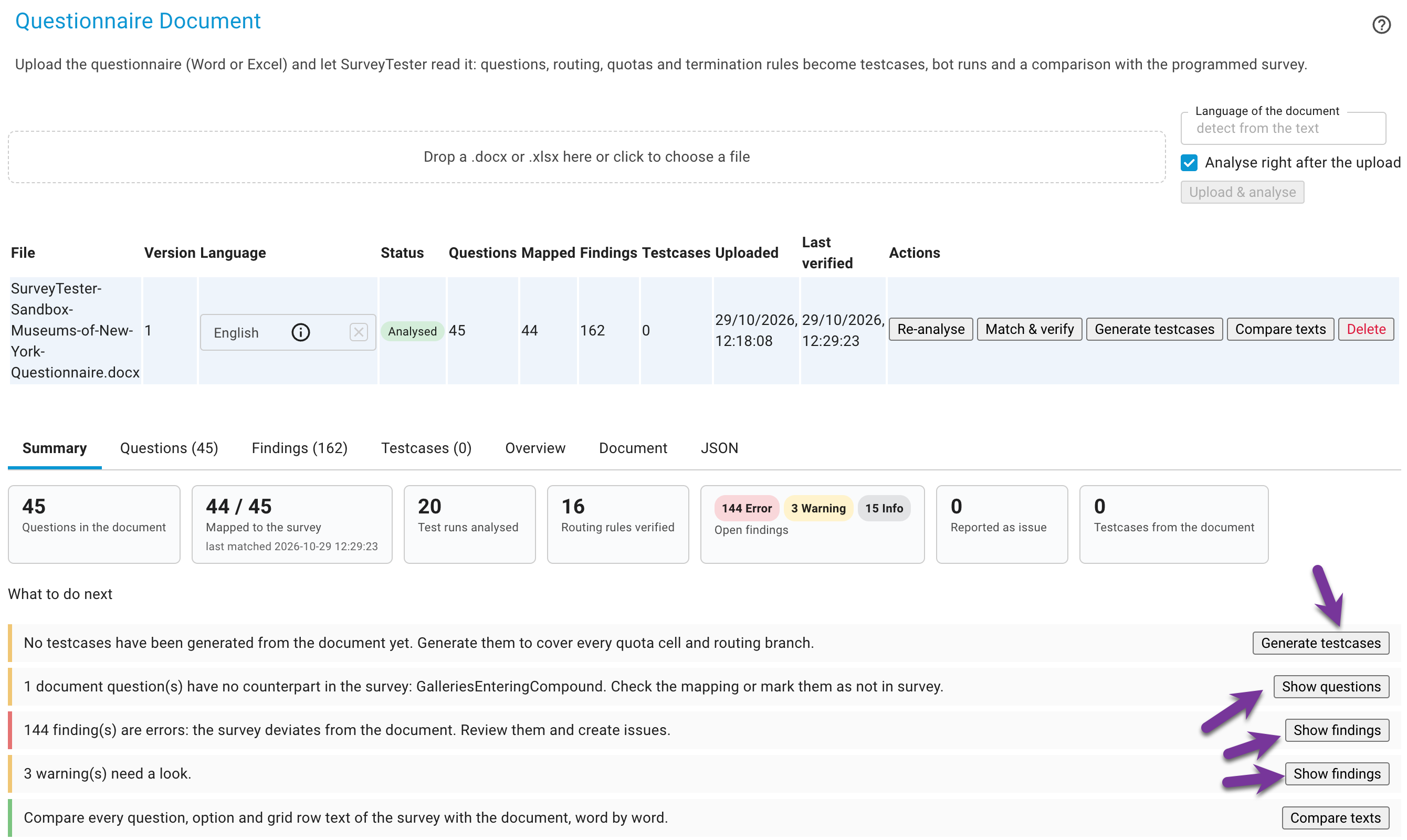
Check the mapping in the Questions tab: filter on Not mapped to see document questions without a counterpart. In this sandbox a few questions stay unmapped because no test run reached their page yet - for example a branch only the "leaving" visitors see. Run a few more bots and match again, or open Edit mapping and pick the survey question by hand. A question that genuinely does not exist in the survey is marked not in survey.
Step 5: Review the findings
Open the Findings tab. Each finding has a severity (Info, Warning, Error), the question it belongs to and a group: Structure & wording, Routing & termination, Coverage or Document. The version with errors deviates from the questionnaire in wording - the spelling mistakes in question texts show up here as text differences - and the routing checks confirm per test run whether the skips in the programmer's notes were followed.
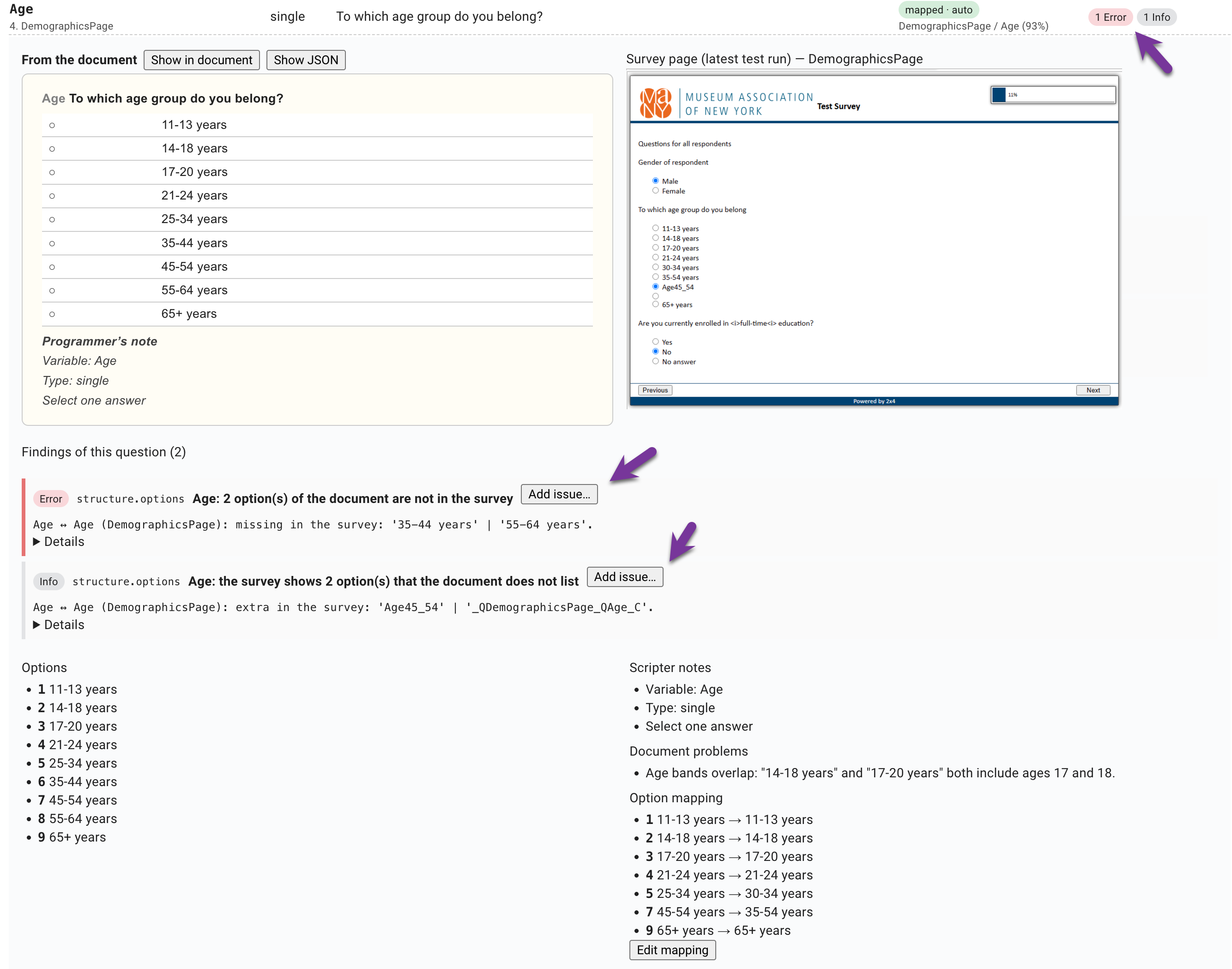
Treat them as in a real project: select the findings that matter and click Create issues - they become issues with the test run attached - or Decline the ones that are fine as they are. A declined finding stays declined when the next verification reproduces it.
Compare texts opens the translation view with the document as an extra column, so you can see every question and option text of the survey next to the Word text, word by word.
Step 6 (optional): Let the document drive the bots
Back in the Questionnaire tab, click Generate & run bots. SurveyTester derives testcases from the document - one Complete persona per routing branch and one Screenout persona per termination rule - and starts SurveyBots with them. The new runs reach the branches the random bots missed, the verification runs again automatically when the job is finished, and the unmapped questions of step 4 disappear.
What you have practised
- A questionnaire attached in the new-project dialog is analysed while you do the first tests - no extra step.
- Match & verify turns the document into the reference: structure, wording and routing are checked against it, per test run.
- Findings are reviewed like any other result: create issues or decline them; the next verification remembers your decisions.
- Testcases generated from the document cover the branches that random answers miss.
Use the same steps on your next real project: attach the questionnaire when you create the project, run the first bots, and read the findings before the first manual test.