
SurveyFox is a dedicated survey system in SurveyTester. A project set to SurveyFox (or to Automatic) recognises a SurveyFox survey the moment the browser extension opens it: the pages, every question with its answer options, matrix rows, rating scales, rankings and MaxDiff sets, and the message SurveyFox shows under a required question that was left unanswered. From there everything else in SurveyTester works as usual - Auto Answer, Auto Complete, SurveyBots, test cases, issues and the Pages & Routing overview.
What a SurveyFox survey looks like to a tester
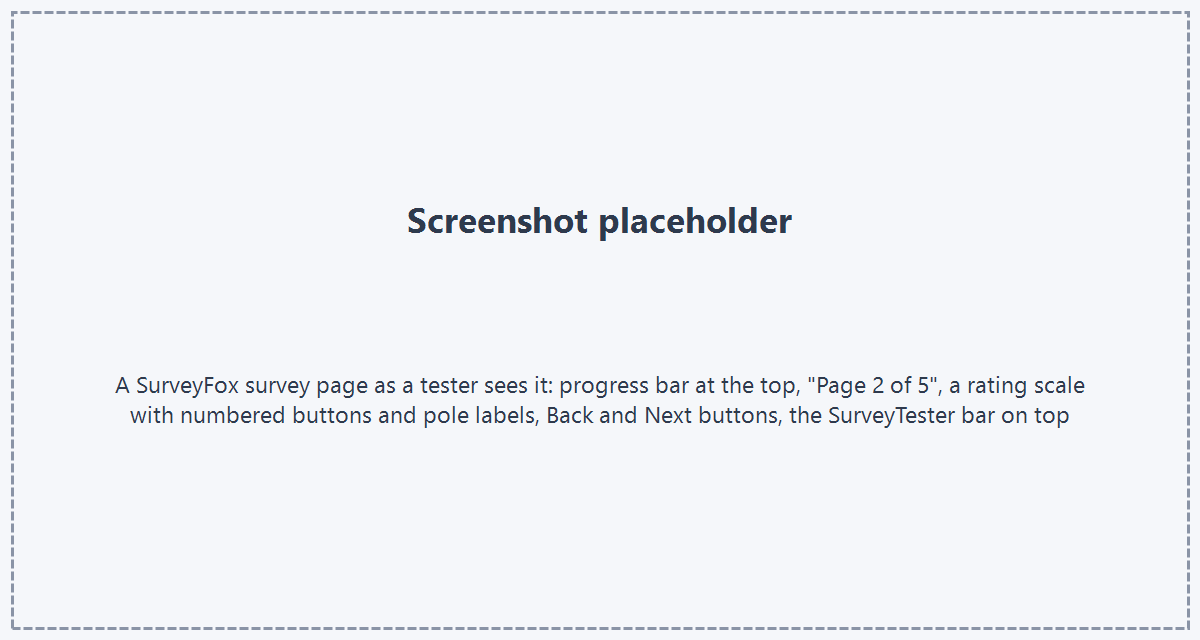
A SurveyFox survey runs at https://surveyfox.io/view/<survey id> - one address for the whole run. The survey is a
single-page app: a progress bar at the top, a "Page n of m" line under the title, the questions of the current page as
cards, and Back and Next buttons at the bottom. Clicking Next swaps the next page into the same browser tab
without reloading. On the last page Next becomes Submit; only then are the answers sent, and a thank-you card
("Thank you! Your response has been recorded.") appears in place of the survey. Skip logic can end the survey early with
a "Thanks for your time" card.
Why this is hard to test without SurveyTester
- Nothing reloads. Because the whole survey lives at one address, a generic tool sees a single page that keeps changing. SurveyTester watches the survey itself and records a new test step every time SurveyFox swaps the page - including the thank-you card at the end.
- Nothing is stored until Submit. SurveyFox sends all answers once, when the respondent submits. A run that is abandoned on page 4 of 6 leaves no trace in SurveyFox. SurveyTester records every page as it was answered, so you see the whole path even when the run never reached Submit.
- Options have no codes. SurveyFox options carry only their label text. SurveyTester identifies options by that label, so option randomisation does no harm and test cases name the option as the respondent reads it.
- Validation happens in the browser. A required question that is left empty keeps the page: SurveyFox outlines the card in red and writes "Please answer this question." under it. SurveyTester captures the message, attaches it to the question and, in automated runs, answers again instead of getting stuck.
- Widgets without form fields. Rankings are moved with up and down arrows, MaxDiff takes a best and a worst per set, closed card sorts assign each card to a group through the card's menu. SurveyTester operates these widgets the way a respondent would.
Supported question types
| SurveyFox question type | How SurveyTester tests it |
|---|---|
| Multiple choice (single answer) | One option is chosen. |
| Checkbox | Several options are ticked. |
| Dropdown | One entry of the drop-down list is selected. |
| Multi-select dropdown | Several entries of the list are selected. |
| Image choice (single or multiple) | One or several images are clicked; the image is shown with the option. |
| Rating scale (1 to N) | One of the numbered buttons is chosen; the pole labels are kept as the question's left and right text. |
| NPS (0 to 10) | One point from 0 to 10 is chosen. |
| Short answer, long answer, essay | A fitting text is typed. |
| Multiple textboxes | Every field is filled; each field is recorded as its own text question. |
| Contact form | Every entry (name, email, ...) is filled; email fields get a valid address. |
| Date | A date is entered. |
| Time | A time is typed as hh:mm. |
| Matrix (radio) | Every row is answered with one scale point; rows are named R1 to Rn. |
| Checkbox grid | Several boxes are ticked per row. |
| Semantic differential | Every row is answered on its scale between the left and right pole. |
| Custom matrix (radio, checkbox, text or dropdown columns) | Every cell is answered according to its column type; each cell is recorded as its own question. |
| Ranking | Every item receives a different rank, moved with the up and down arrows. |
| MaxDiff | A different item is picked as best and as worst in every set. |
| Continuous sum | The numbers are distributed so that they add up to the configured total. |
| Closed card sort | Every card is assigned to one of the groups through the card's menu; recorded as a grid (card to group). |
| Conjoint | One of the shown options is chosen. The combinations are random, so this question cannot be driven by a test case. |
| Text block, embed | Recorded as information, nothing to answer. |
| Page break | Marks the page boundary. |
Image heatmaps and open card sorts are recognised and recorded as information so the page keeps its shape, but they are not answered automatically yet. A question type SurveyTester has not met yet is still read from its controls, so the test run continues; it is marked in the page structure so you can see which type was parsed generically.
Step by step
- Create the project. Choose SurveyFox as the survey system, or leave it at Automatic - the survey is
recognised either way. Paste the survey link (
https://surveyfox.io/view/...). - Start a test run from the project with the SurveyTester browser extension, or let SurveyBots run the survey. The SurveyTester bar appears above the survey, and the first page is recorded as step 1.
- Answer the survey by hand, or press Auto Answer and Auto Next to let SurveyTester fill the page and move on. Each Next or Submit creates the next step; Back is recorded as a backward step.
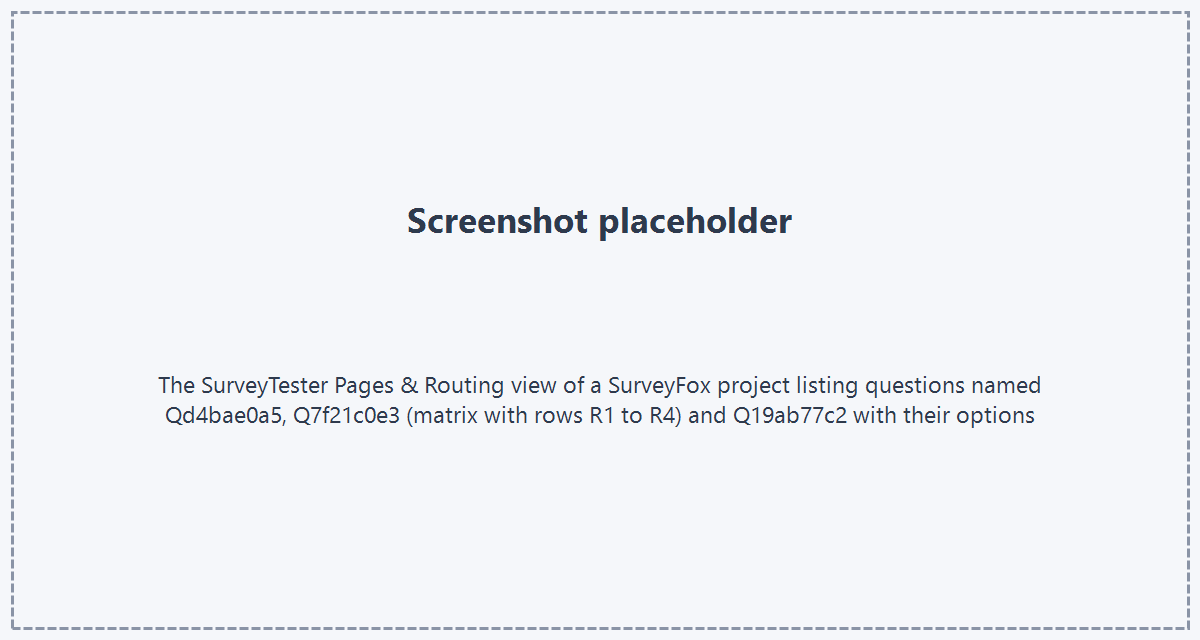
- Check the result on the Pages & Routing page: every page appears with its questions, every question with its answer options, matrix rows and every "Please answer this question." message the survey showed during the run.
- Write test cases with the option labels as values - that is how SurveyTester identifies SurveyFox options.
Good to know
- Question names. SurveyFox identifies questions by long ids. SurveyTester uses
Qplus the first eight characters of that id (Qd4bae0a5), so the names stay the same when the author inserts a question in between. Matrix rows areR1toRnin the order shown. - Early end by skip logic. When skip logic ends a survey early, SurveyFox shows "Thanks for your time". Add that text as a Screenout end page identifier in the project so SurveyTester records the run as a screenout rather than a complete.
- Password-protected surveys cannot be run by SurveyBots: a tester must enter the password by hand in a test run with the browser extension. Expired surveys show "Survey unavailable" instead of the first page.
- Required answers only. SurveyFox validates nothing but "required". Number ranges, character limits or sum checks do not exist, so a test case cannot provoke other validation messages.
- Conjoint questions show random combinations on every run. SurveyTester answers them, but a test case cannot fix the answer, and routing that depends on the choice should be checked by hand.