
Voxco CATI surveys are telephone interviews that an interviewer runs in the browser with Voxco Interviewer Web. Before the first question appears, the interviewer goes through a few Voxco screens: the logon, the project selection and the CATI menu with the New Call button. SurveyTester recognises these screens, lets you fill them in right away and starts recording when the interview begins.
What a Voxco CATI test looks like
The survey link of the project opens the Voxco logon page. From there:
- Logon - user name, password and context of the interviewer account.
- Project selection - the project, the interviewer group and the Test Mode check box.
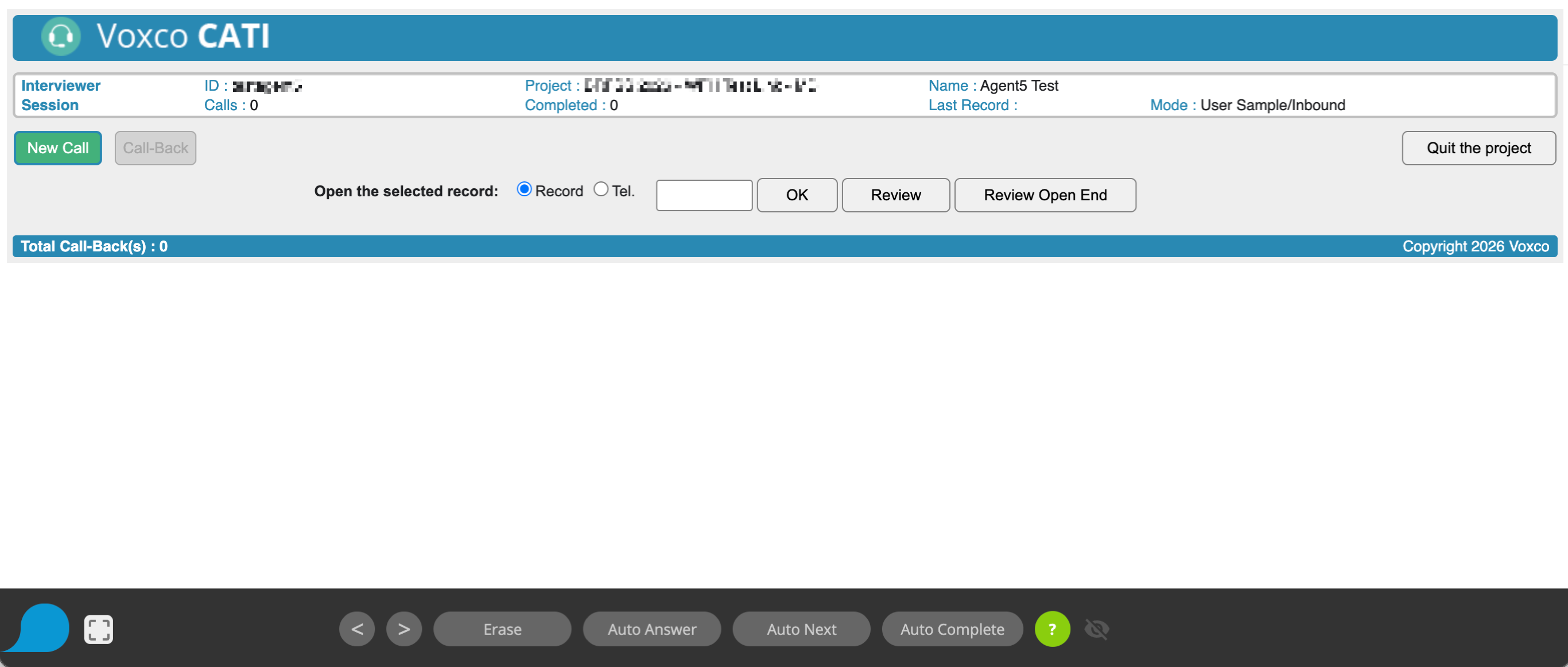
- CATI menu - session summary and the buttons New Call, Call-Back and Quit the project.
- The interview - one question page after the other, until the end of the interview.
Why this is hard to test without SurveyTester
- Every screen has the same address. Logon, project selection, CATI menu and every interview question are all
served from the same
.../intweb.dlladdress. A tool that tells pages apart by their URL cannot see where the tester is. SurveyTester tells the screens apart by how they are built, not by their address or wording. - Screens that are not survey pages. When SurveyTester does not recognise a page as a survey page, it normally waits a few seconds in case the survey is still loading. The Voxco screens before the interview never turn into a survey page by themselves, so SurveyTester releases them immediately - you can log in, choose the project and click New Call without waiting.
- Login data stays private. The logon page is never recorded: no screenshot, no stored page content. See My survey starts with a login page.
Step by step
- Create the project and paste the Voxco Interviewer Web link as the survey link.
- Start a manual test run with the SurveyTester browser extension. The Voxco logon page opens.
- Log in with the interviewer account you use for testing.
- Choose the project, enter the group if your setup needs one, tick Test Mode and click Log In.
- Click New Call in the CATI menu. The interview starts and SurveyTester records every question page as a step of the test run.
- Answer the interview by hand, or use Auto Answer and Auto Next on the interview pages.
- Check the result on the Pages & Routing page. Only the interview pages appear there; the logon, the project selection and the CATI menu are not part of the test run.
Good to know
- Use Test Mode. Tick Test Mode on the project selection screen so your test interviews are not counted as real interviews in Voxco.
- SurveyBots. A SurveyBot cannot log in to Interviewer Web. Test Voxco CATI surveys manually.
- A screen SurveyTester does not know yet. If another Voxco screen appears before the interview and SurveyTester shows Waiting for a survey page…, click Cancel in that message to use the screen right away. Please tell us about the screen so we can add it.