
CMIX by Dynata is a dedicated survey system in SurveyTester. A project set to CMIX (Dynata) (or to Automatic) recognises a CMIX survey the moment the browser extension opens it: every question with its answer options, grid rows, slider scales and open fields, and the message CMIX shows under a question that was not answered. From there everything else in SurveyTester works as usual - Auto Answer, Auto Complete, SurveyBots, test cases, issues and the Pages & Routing overview.
What a CMIX survey looks like to a tester
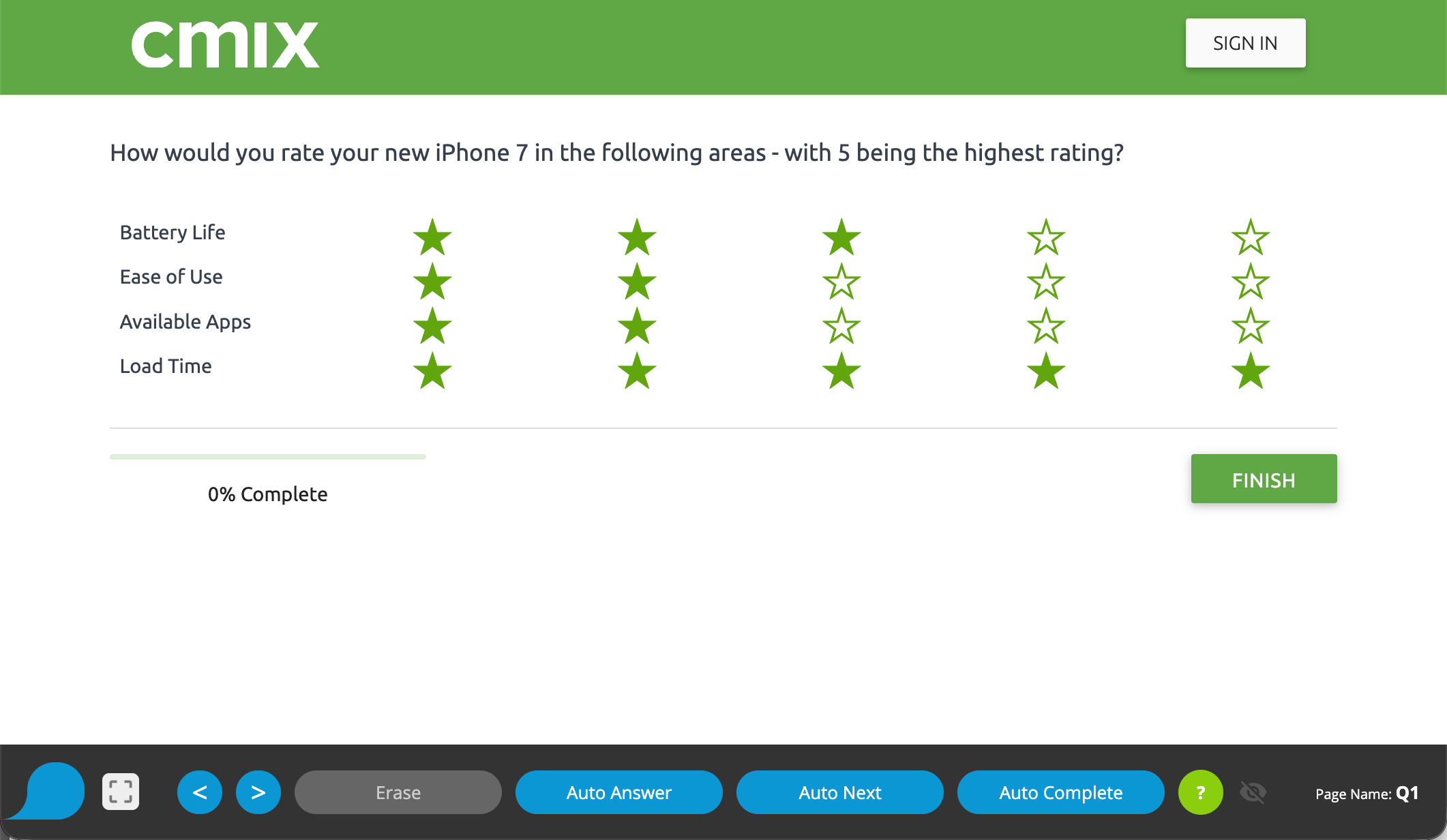
A CMIX survey looks like a page-by-page questionnaire with a Next button (or Finish on the last page), but the browser never loads a new page: CMIX sends the answers in the background and swaps the next page into the same window. The address bar does not change from the first question to the last. Many question types are interactive - answer buttons that show one statement at a time, cards to sort, sliders, items to rank by number, a shelf with products to put into a cart.
Why this is hard to test without SurveyTester
- Pages change without a page load. Tools that wait for the browser to navigate never notice that the next CMIX page has arrived. SurveyTester watches the survey itself and records every swapped-in page as its own step.
- Interactive widgets. Button select, card sort, sliders and rank-by-number questions keep their real answers in hidden fields behind the visible widget. SurveyTester knows where CMIX records each answer and sets it the way the page expects - a slider is moved along its scale, a rank is typed into the item's field.
- Validation stays on the page. When a required question is skipped, CMIX does not reload - it writes "Please provide an answer below." under the question and keeps the answers already given. SurveyTester captures the message, attaches it to the right question and, in automated runs, answers again instead of getting stuck.
- Readable names in a sea of ids. CMIX names its fields with long internal numbers. SurveyTester uses the names
the survey author gave the questions (
Q1,Q1_1,intro_screener) and the author's answer codes wherever CMIX renders them, so test cases and issues read like the questionnaire.
Supported question types
| CMIX question type | How SurveyTester tests it |
|---|---|
| Single choice, multiple choice | One or several options are clicked; an option with a text field ("Other: ___") gets a fitting text. |
| Text suggestion (type and pick from a list) | The option's name is typed into the search box and the suggestion is picked, exactly as a respondent would; the chosen options appear as chips. |
| Drop-down | A value is selected. |
| Number field (for example age) | A number inside the allowed range is typed; the unit next to it ("years") is kept. |
| Text box | A fitting text is typed, within the maximum length. |
| Grid, star rating | One scale point is chosen per row. |
| Button select (one statement at a time) | The same grid behind the buttons is answered row by row. |
| Card sort | The cards are dragged into their buckets, or the one-card-at-a-time buttons are pressed in order; rows keep their author names (Q3_1). |
| Slider | Each slider is moved to a value of its scale. |
| Rank sort (drag into the ranked list) | The items are dragged into the ranked list in rank order (for example your top 5); the list numbers them. |
| Numeric rank | Each item gets a rank typed into its field, within the allowed range. |
| Shelf test | A quantity is entered per product. |
| Page turner (brochure) | The brochure is flipped to its last page, which unlocks Next; then SurveyTester moves on. |
| Information page | Recorded as information; SurveyTester moves on with Next. |
| Stack sort (drag into buckets) | Each card is dragged into one of the buckets. |
| Text highlighter (click words to colour them) | Words are clicked once or twice to give them one of the key's colours; every word is recorded with its colour or as not highlighted. |
| Spot highlighter (click areas of a picture) | A state from the key is picked and a spot is placed on the picture; when comments are enabled, the spot gets a comment. Each state is recorded as chosen or not, with its comment. |
A question type SurveyTester has not met yet is still recorded as a page so the test run continues; it is marked in the page structure so you can see which type needs attention.
Step by step
- Create the project. Choose CMIX (Dynata) as the survey system, or leave it at Automatic - the survey is recognised either way. Paste the survey link.
- Start a test run from the project with the SurveyTester browser extension. The SurveyTester bar appears above the survey and the first page is recorded as step 1. When the link leads through a panel's start page first, that page is recognised too and SurveyTester continues into the survey.
- Answer the survey by hand, or press Auto Answer and Auto Next to let SurveyTester fill the page and move on. Every page CMIX swaps in becomes the next step, although the address never changes.
- Check the result on the Pages & Routing page: every question appears with its answer options, grid rows, scales and every validation message CMIX showed during the run.
Good to know
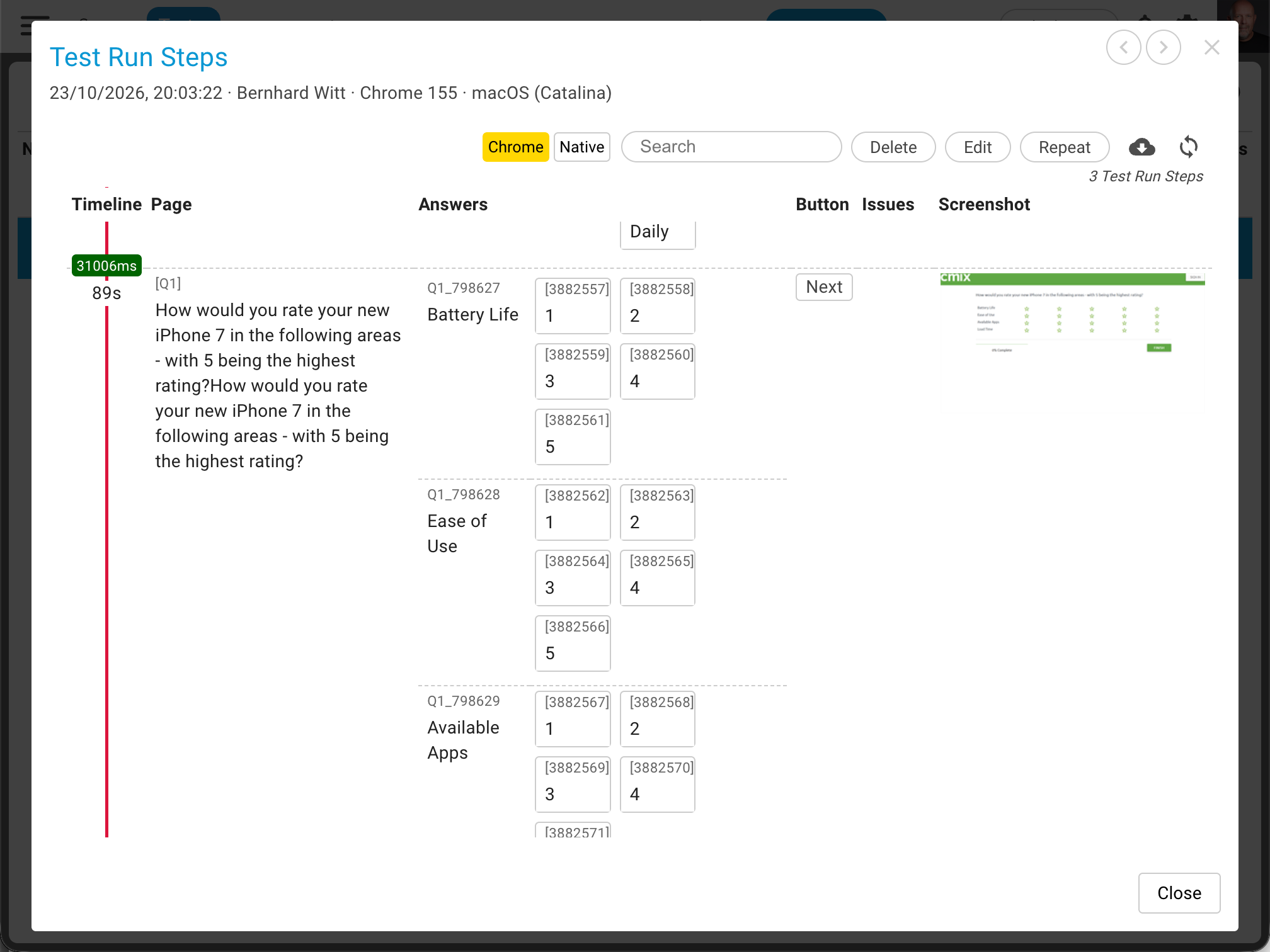
- Question names. SurveyTester uses the author's question names; grid rows add CMIX's row id (
Q1_798627) unless the author named them (Q3_1); the page is named after its questions (Q1_Q2). - The same page twice. A page CMIX rejected appears again under the same name, with the message attached. A run that keeps failing the same page is stopped as stuck.
- The end of the survey. CMIX surveys usually end by redirecting to the panel's thank-you page. Add that page to the survey end pages of the project type (or the project) so SurveyTester knows which outcome the run reached.
- Looped pages. When a page is shown once per selected item, every iteration is recorded as its own page.