
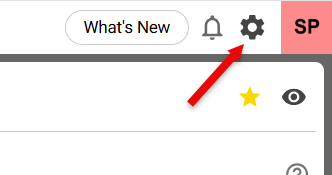
To add a new USER, click on the gear icon on the top right corner and go to the Administration & Settings.
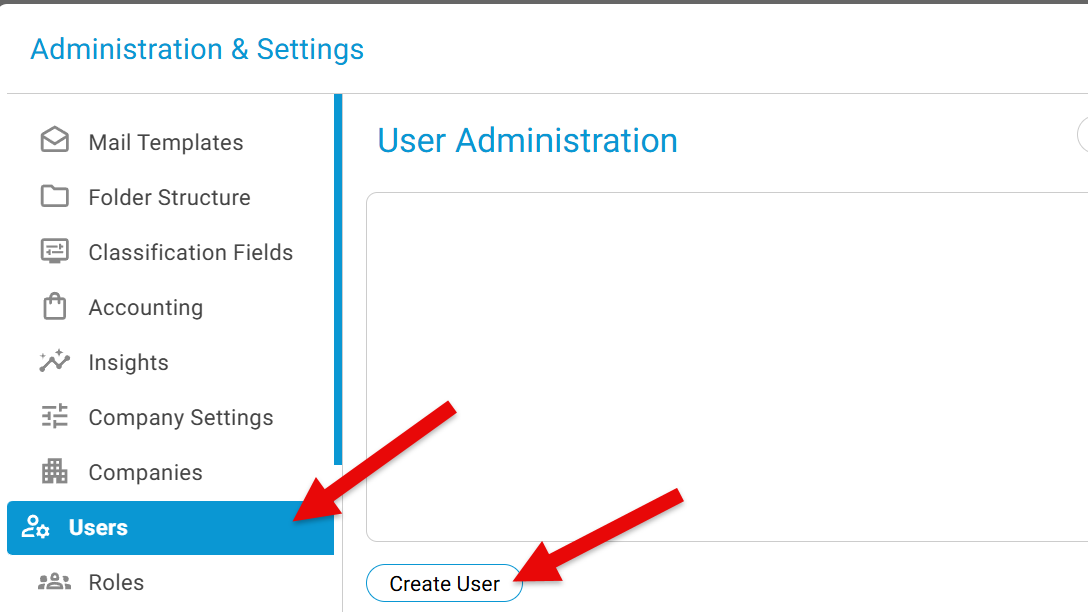
Click on USERS -> Click the button "Create User"
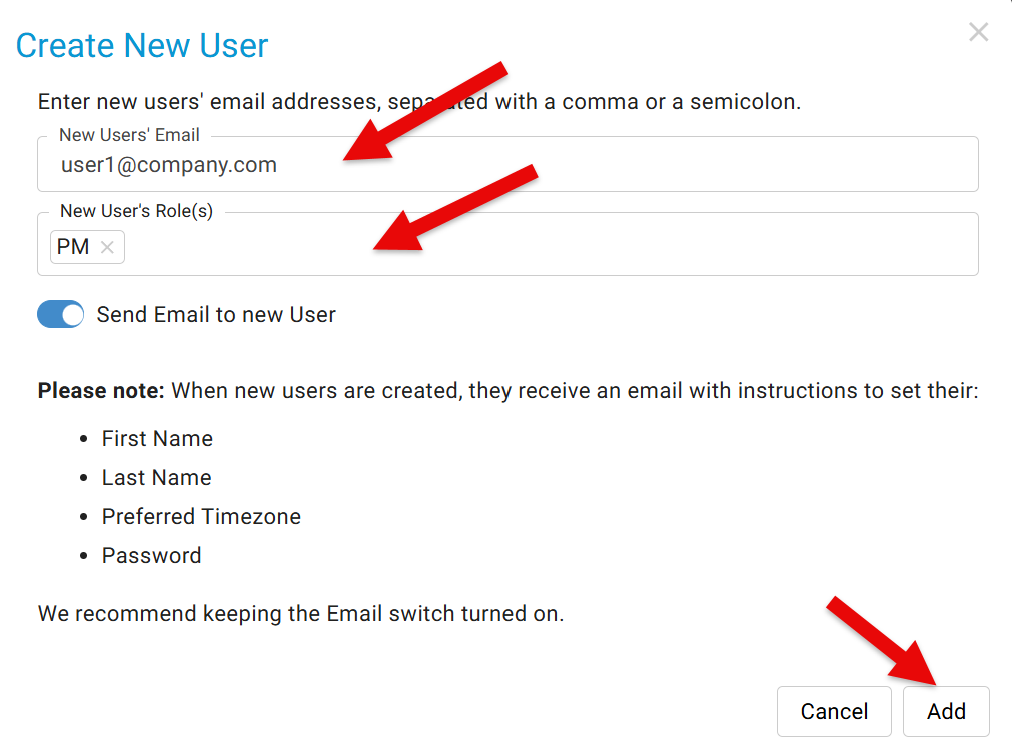
A new window open and enter the new users email id and select the role(s) to be assigned for this user and click Add. Multiple users can be created in one step separated by comma.
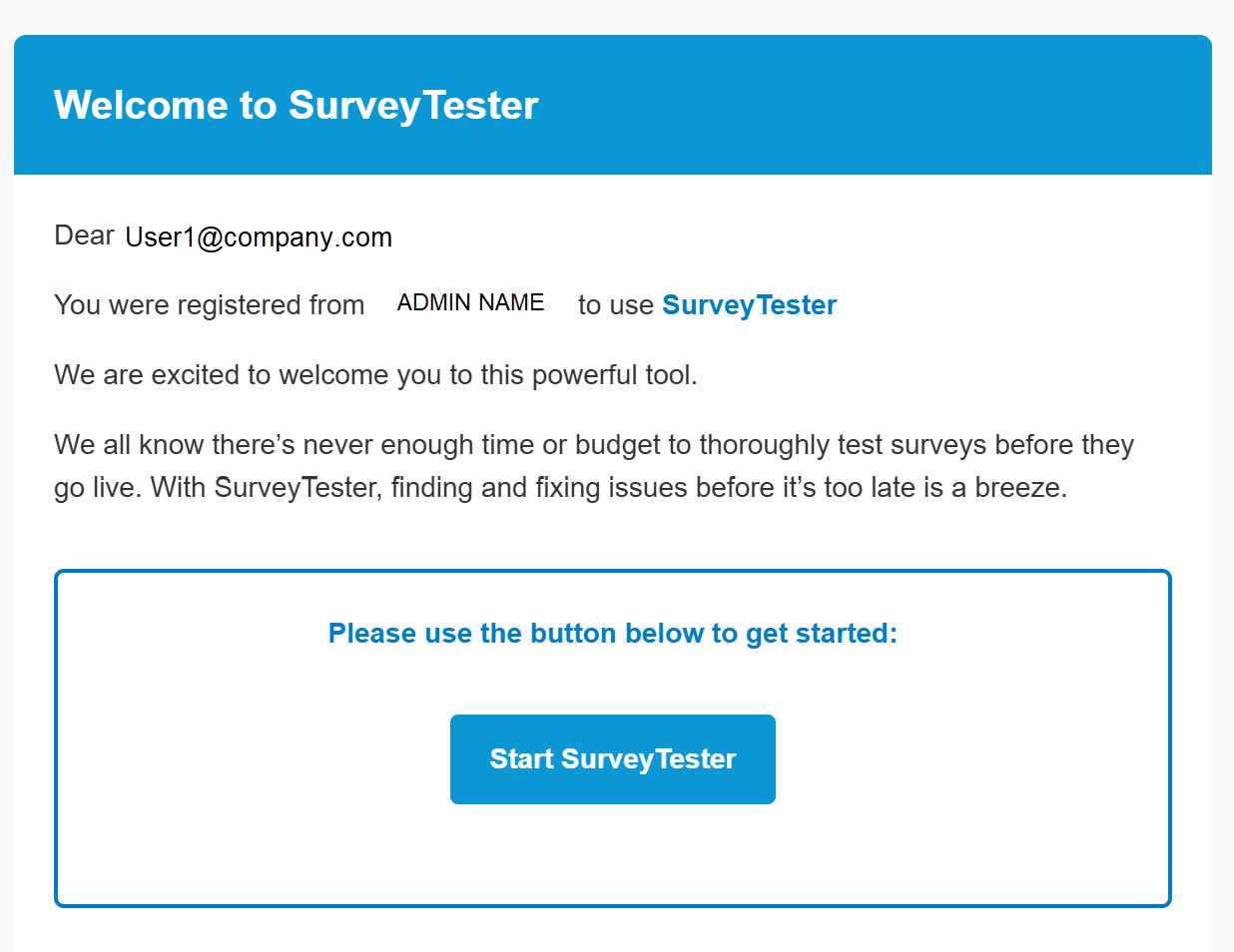
This will trigger an email to the user, with a link to complete the registration.
Add a Role to SurveyTester
To add a new ROLE, click on the gear icon on the top right corner and go to the Administration & Settings.
Click on ROLE -> Click the button "Create Role"
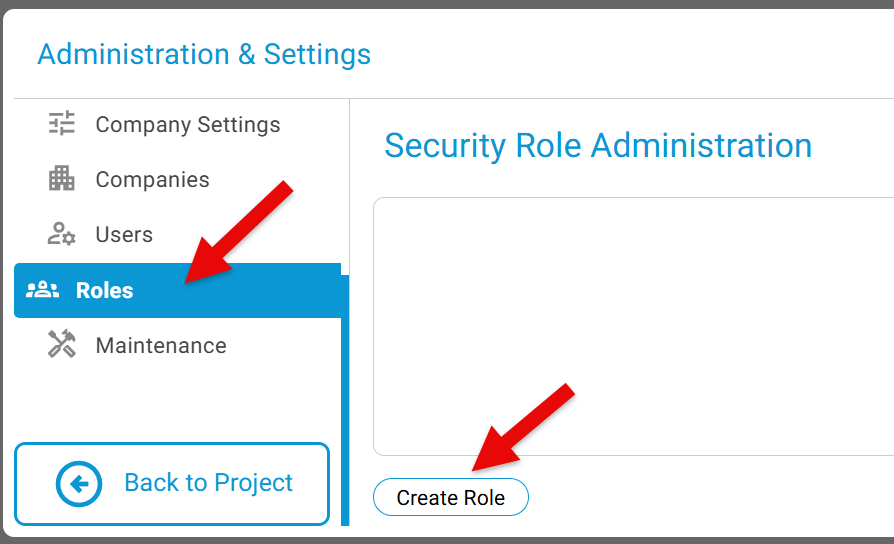
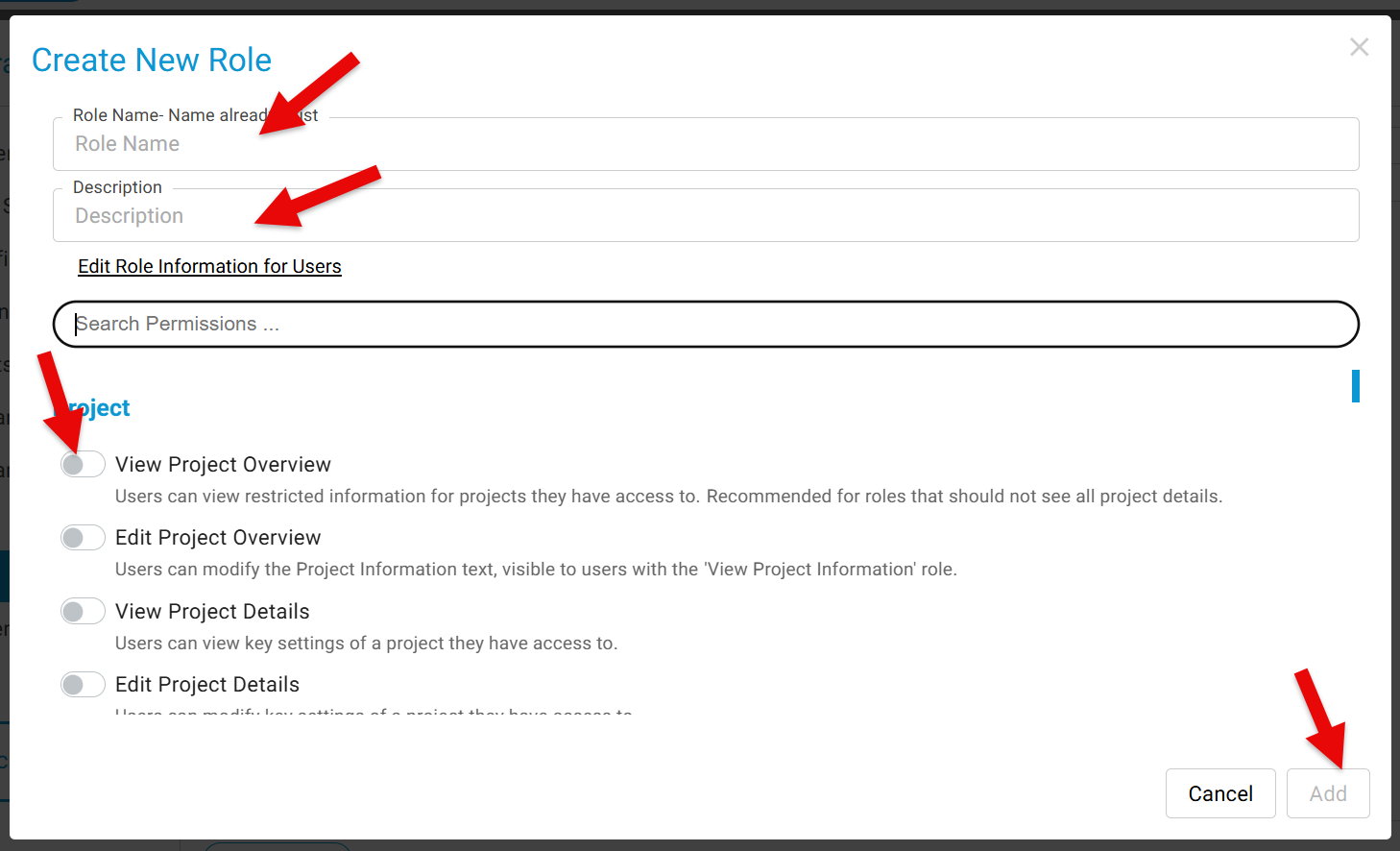
A new window open and enter the Role Name, add description and select the Permissions to be assigned for this Role and click Add.
Note
Admins should not remove permissions from their role, or you will lose access, unless the SurveyTester team adds it again for the admins.
To learn about duplicating a ROLE, click here.