
The system can automatically create Markets for multi‑market projects by extracting unique market parameters from either test survey URLs or a pasted table (Excel). Use the Test URLs flow when you have sample survey links that include market parameters (for example, country=TH). Use the Table flow when you already have a two‑column list of market names and parameter values.
Auto‑Import from Test Survey URLs
Step 1: Open Markets: From Project Details, select Markets. Step 2: Start Import: Click Add Multiple Markets.** Step 3: Provide Test URLs:** Paste one or more test survey URLs (one per line) into the input field and click Next. Step 4: System analysis: The system parses the URLs and identifies unique market‑related parameters and values (for example, country=TH, AUD=2).
You will see a list of discovered parameter names and their unique values, plus a dropdown to choose which parameter should act as the Market variable (for example, country or region).
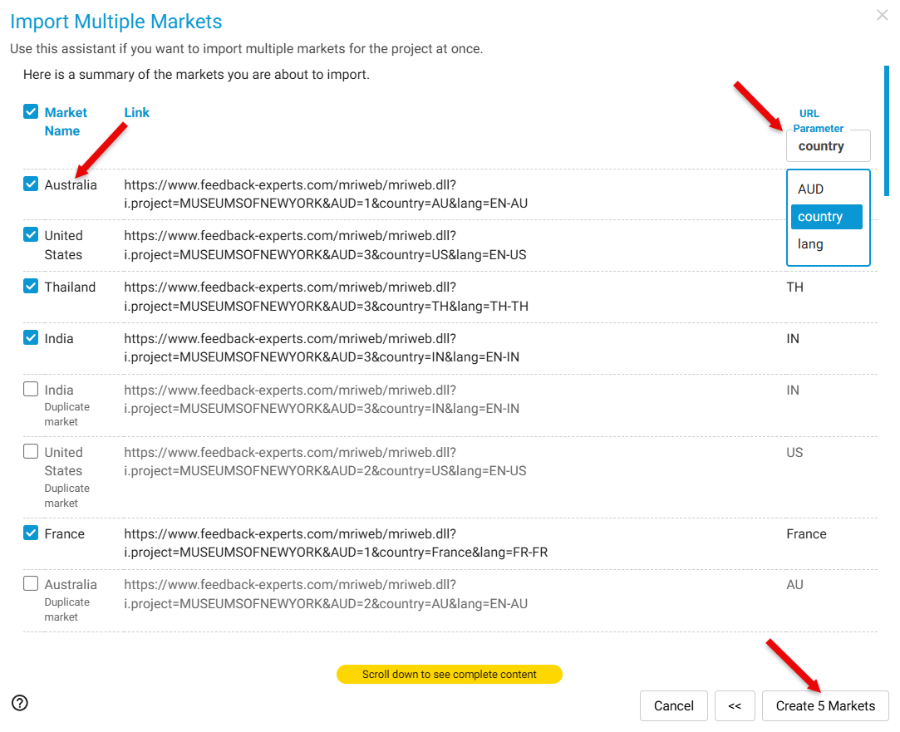
Step 5: Create Markets
- Select the appropriate Market variable from the dropdown.
- Click Create X Markets to generate Markets from the selected parameter values.
- Example: the system detects country=TH and creates Market: Thailand (TH).
Example created: country=TH → Market: Thailand (TH) 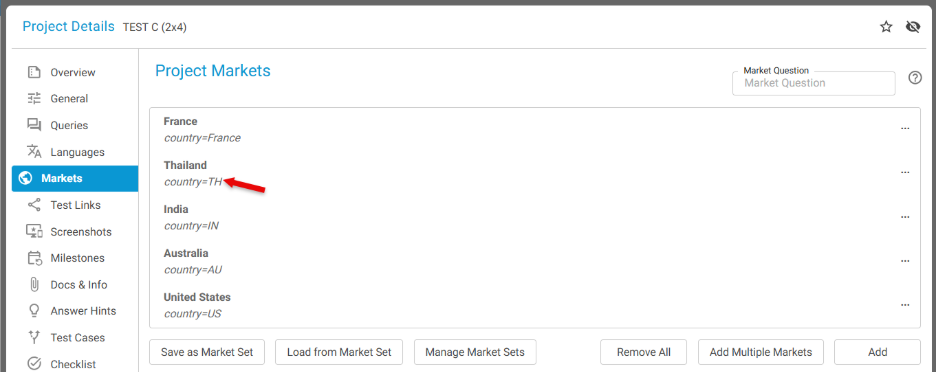
Auto-import from a Table
Step 1: Open Markets: From Project Details, select Markets.
Step 2: Start import: Click Add Multiple Markets.
Step 3: Provide table data (Excel): Copy and paste your market data in a two‑column format (Market name, parameter value) and click Next.
Step 4: System analysis: The system reads the pasted table, detects column headings and values, and displays the columns that map to market name and parameter value. 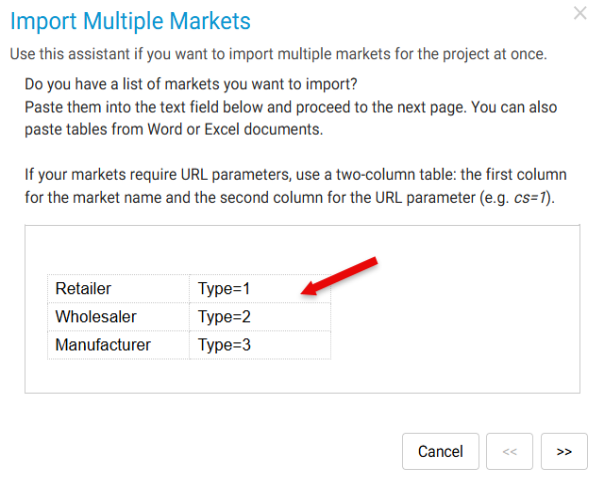
Step 5: Create Markets: Confirm the column mappings, then click Create X Markets to add the Markets to the project. 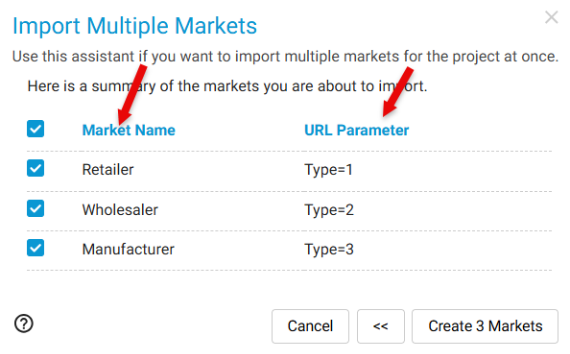
The market information will be created as below - 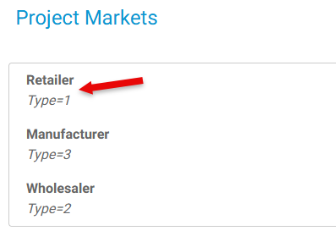
Notes and validation behavior
- Preview: Before creation, the system shows a preview of parsed values so you can confirm or edit mappings.
- Duplicate values: Detected duplicate parameter values will be highlighted for review and resolution.
- Unrecognized parameters: If the system cannot confidently identify a Market variable, it prompts you to select the correct parameter manually.
- Display names: The UI offers a way to convert parameter codes into readable display names (for example, TH → Thailand) and to edit display names prior to creation.