Auto‑Importing Markets Using Test Survey URLs
For projects containing multiple markets, you no longer need to manually add each parameter one by one. The system can now automatically identify unique parameter values directly from your test survey URLs and Markets. If you need more parameters you can add those using Test Case.
1. Importing Multiple Markets using Test URLs
Step 1: Navigate to Markets
- Go to Project Details
- Select Markets
- Click on button Add Multiple Markets
Step 2: Provide Test Survey URLs
- Copy and paste the same test survey URLs
- Click Next
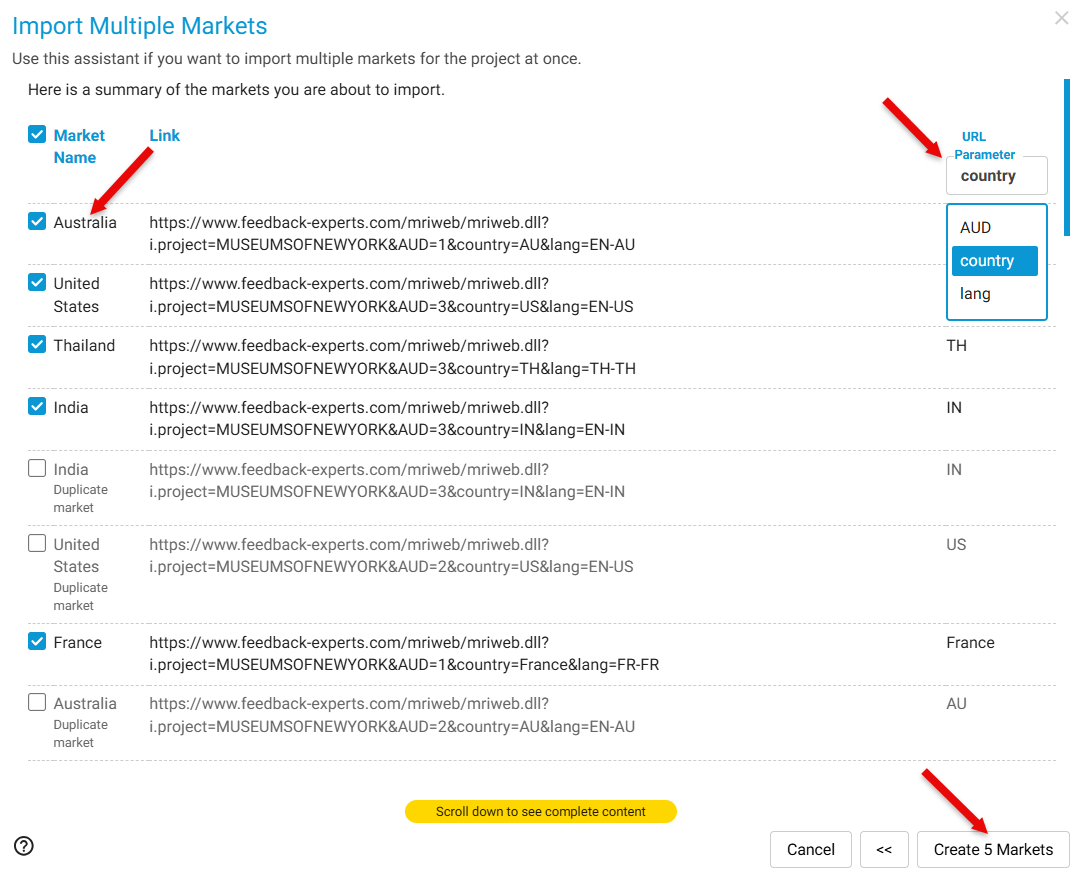
Step 3: System Identification: The system analyzes the URLs and detects unique market-related parameters. You will see:
-
A list of unique parameter names and values
-
A dropdown to select the Market variable (e.g., country, region)
Step 4: Create the Markets
- Select the relevant variable (e.g., country)
- Click Create X Markets
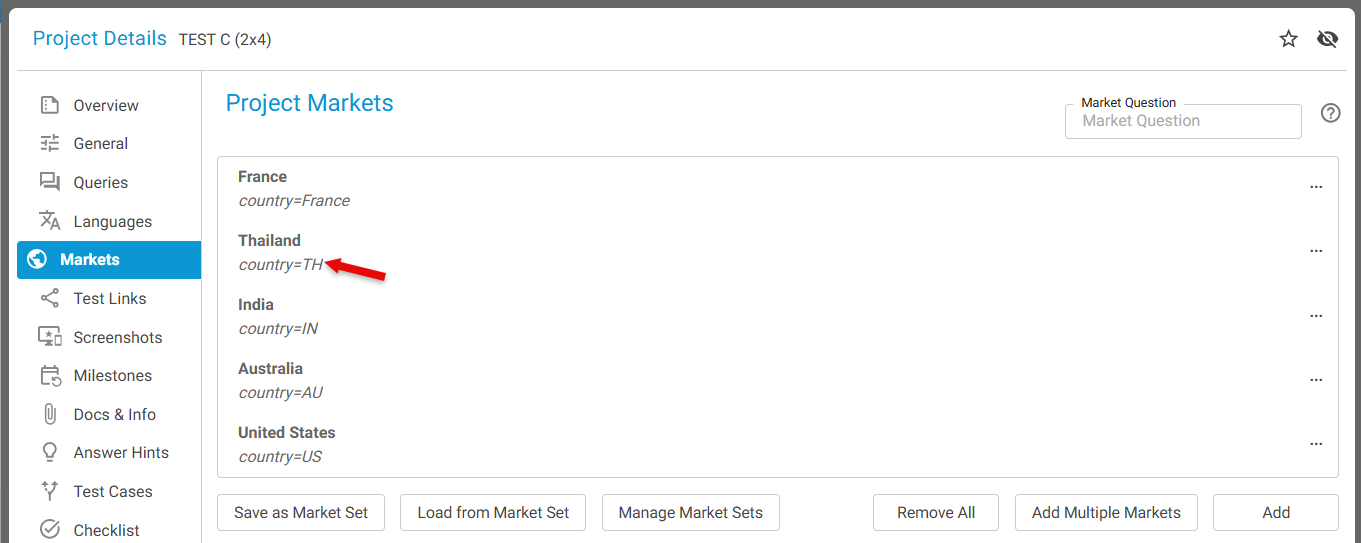
Example created: country=TH → Market: **Thailand (TH)
 **
**
______________________________________________________________________________________________________
2. Importing Multiple Markets using table
Step 1: Navigate to Markets
- Go to Project Details
- Select Markets
- Click on button Add Multiple Markets
Step 2: Provide Market data in table format
-
Copy and paste the market information in table format with 2 columns
-
Click **Next **
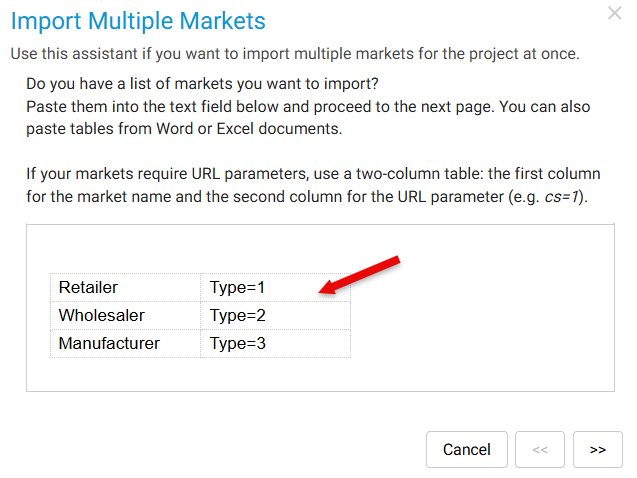
Step 3: System Identification: The system analyzes the table and detects unique market-related parameters. You will see:
-
Columns with **market names and parameter values **
-
Click Create X Markets
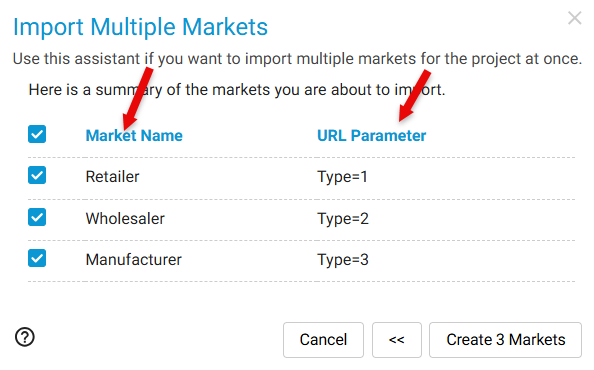
-
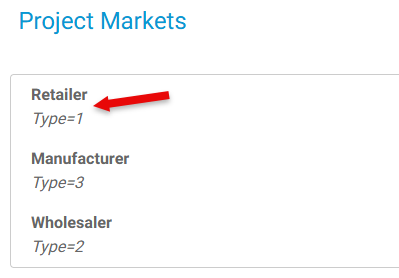
The market information will be created as below -